Deployment Instructions - Linux Version
Installing ChinLink Web EDI
Create Project Installation Directory
Create the /opt/chinlink/soft directory and copy the installation package to the /opt/chinlink/soft directory.
Extract Installation Package
Extract the installation package to the /opt/chinlink/website directory.
unzip /opt/chinlink/soft/ERP_WebSite_Erp_WebSite_Backend_xxx_artifacts.zip -d /opt/chinlink/websiteInitialize System Configuration Files
Copy all files from the /opt/chinlink/website/install/config/linux directory to the /opt/chinlink/website/install directory.
cp -r /opt/chinlink/website/install/config/linux/. /opt/chinlink/website/install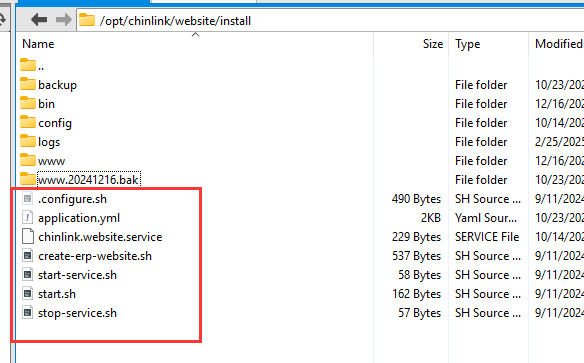
System Configuration
Modify .configure.sh File
Check and modify BASE_DIR (system installation directory, current configuration file directory)
JRE_HOME (JRE installation directory)
PG_SQL (PGSQL installation directory)
DB_DATA (PGSQL data directory)
export BASE_DIR=/opt/chinlink/website/install
export JRE_HOME=/opt/chinlink/clip/install/jre17
export PG_SQL=/usr/lib/postgresql/14
export DB_DATA=/etc/postgresql/14/main
Set Startup File Permissions
Enter the /opt/chinlink/website/install directory
chmod +x *.sh
chmod +x .configure.sh
Initialize Database
When deploying Web EDI separately, you need to initialize the database. (Execute as needed)
In the install directory, execute init-db.bat.
./init-db.sh
Create and Start Service
Create Service
./create-erp-website.sh

Start Service
./start-service.sh
Stop Service
./stop-service.sh
System Web Interface Access
Initialize admin Account
After starting the service, you can enter http://[ip]:8481/init in the browser to initialize the admin account. (For external device access, the firewall needs to open the port)

System Web Interface Login
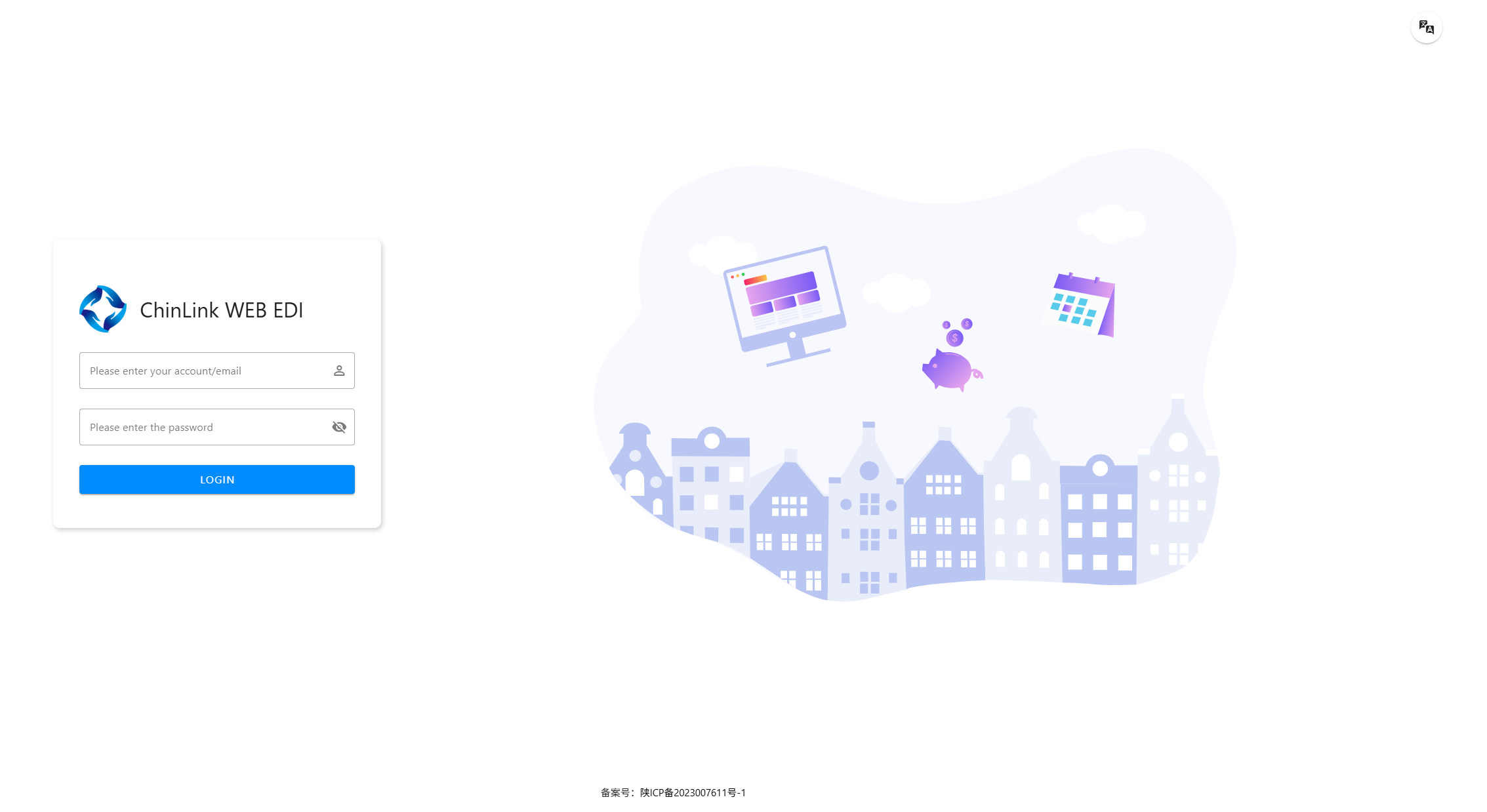
After initialization is complete, enter http://[ip]:8481/login in the browser address bar and use the just-initialized admin account to log in to the ChinLink Web EDI system.