
ChinLink Web EDI System - Product Feature Introduction
The ChinLink Web EDI System is a WEB-based solution of the ChinLink Data Integration Platform. It is a WEB platform that integrates various online services and information, typically used as a unified entry point for customers to handle and manage business processes such as orders and warehouses.
The design purpose of Web EDI is to simplify user experience, integrate multiple functions, and provide personalized content.
The design and functionality of Web EDI vary depending on different application businesses and scenarios. It can be an internal business process, custom portal, small and medium-sized ERP system, etc. Overall, Web EDI provides an integrated and convenient online platform that enables users to access multiple services and information in one place.
System Login
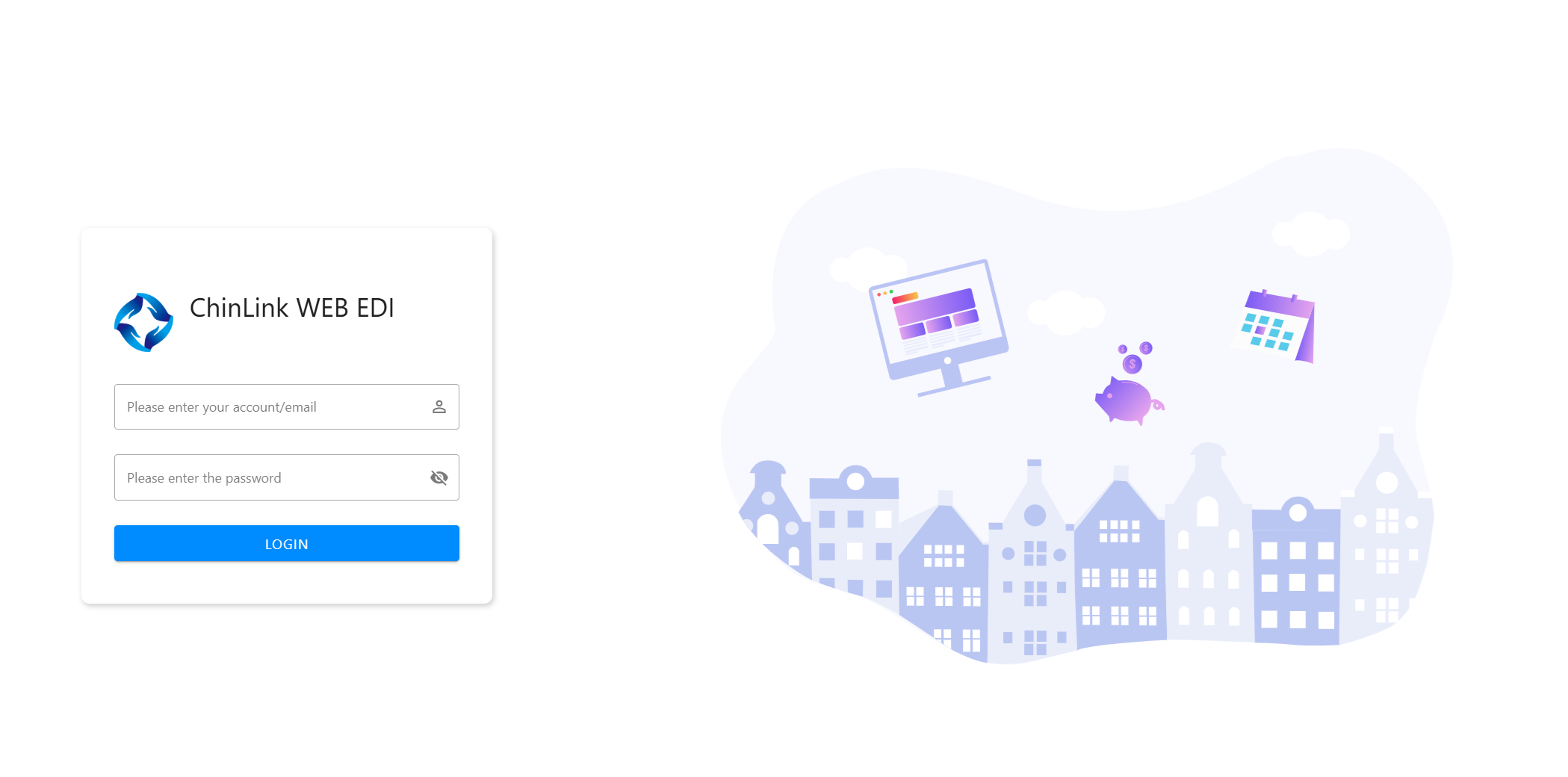
The system defaults to logging in through account/registered email. According to customer needs, enterprise employee accounts, email login, etc. can be added.
System Homepage
After successful system login, enter the system homepage.
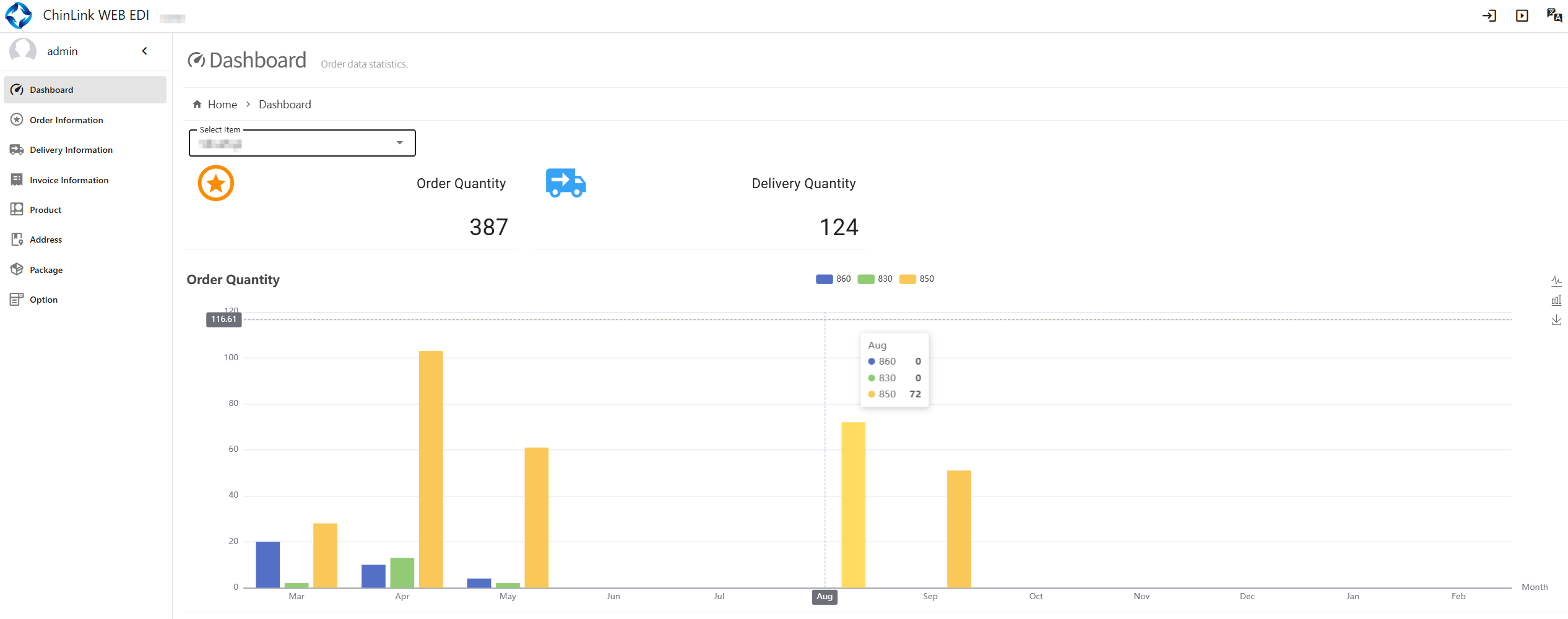
Function Menu: A graphical interface used by users in the system to navigate and access various functions. Includes dashboard, system settings, and business functions.
Interface Navigation: Currently mainly displays functions such as system Chinese/English interface switching and system logout.
Dashboard: An interface that integrates system functions, designed to provide an overall overview of the system and a one-stop access interface.
Business Function Introduction
Dashboard
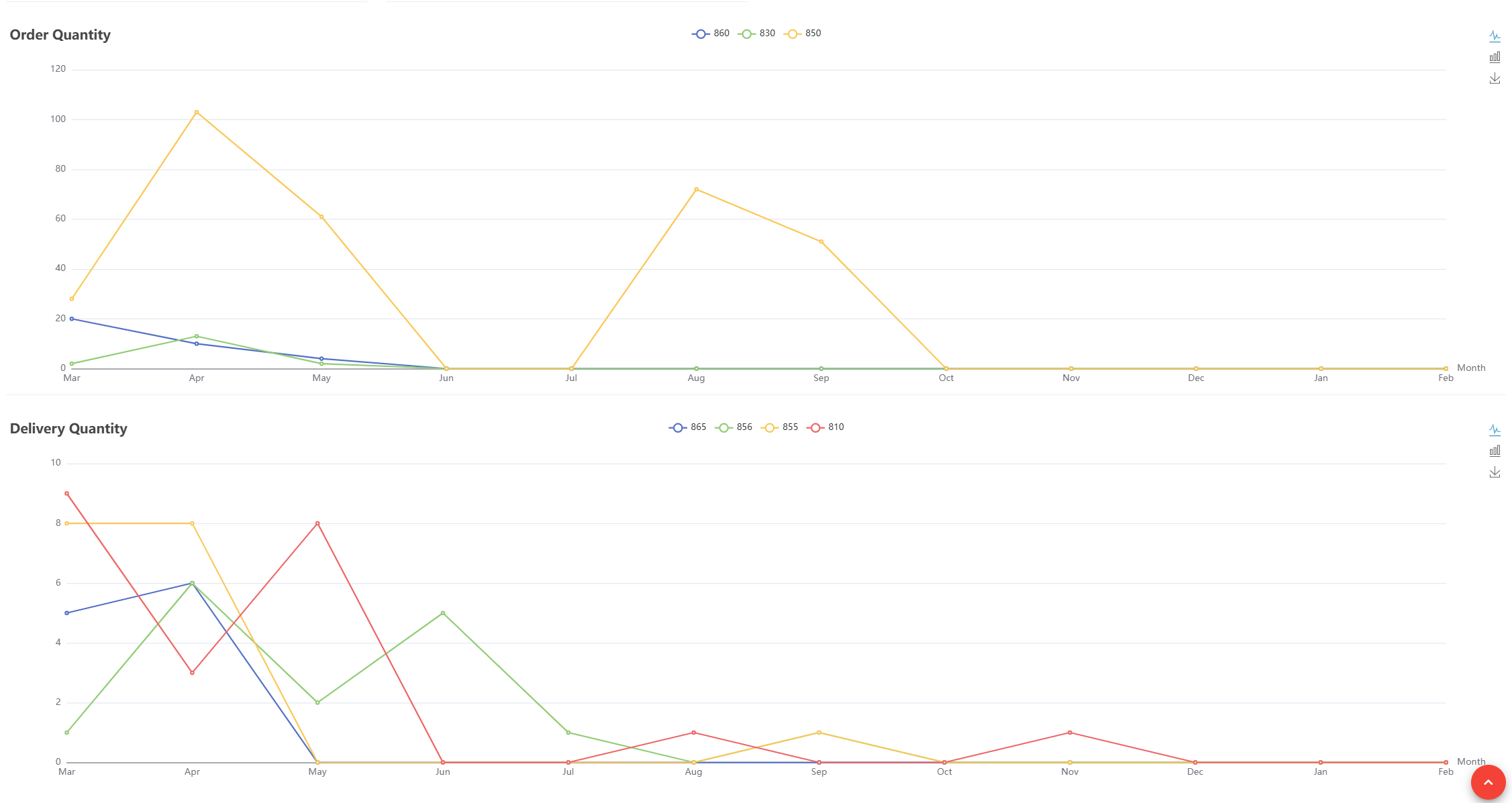
The dashboard interface is an information summary and visualization interface used to display key performance indicators and important data to users. Currently, it mainly displays order statistics, allowing intuitive and quick understanding of recent order processing status.
The interface supports switching between bar charts and line charts, and can be customized according to different business displays.
Order Information
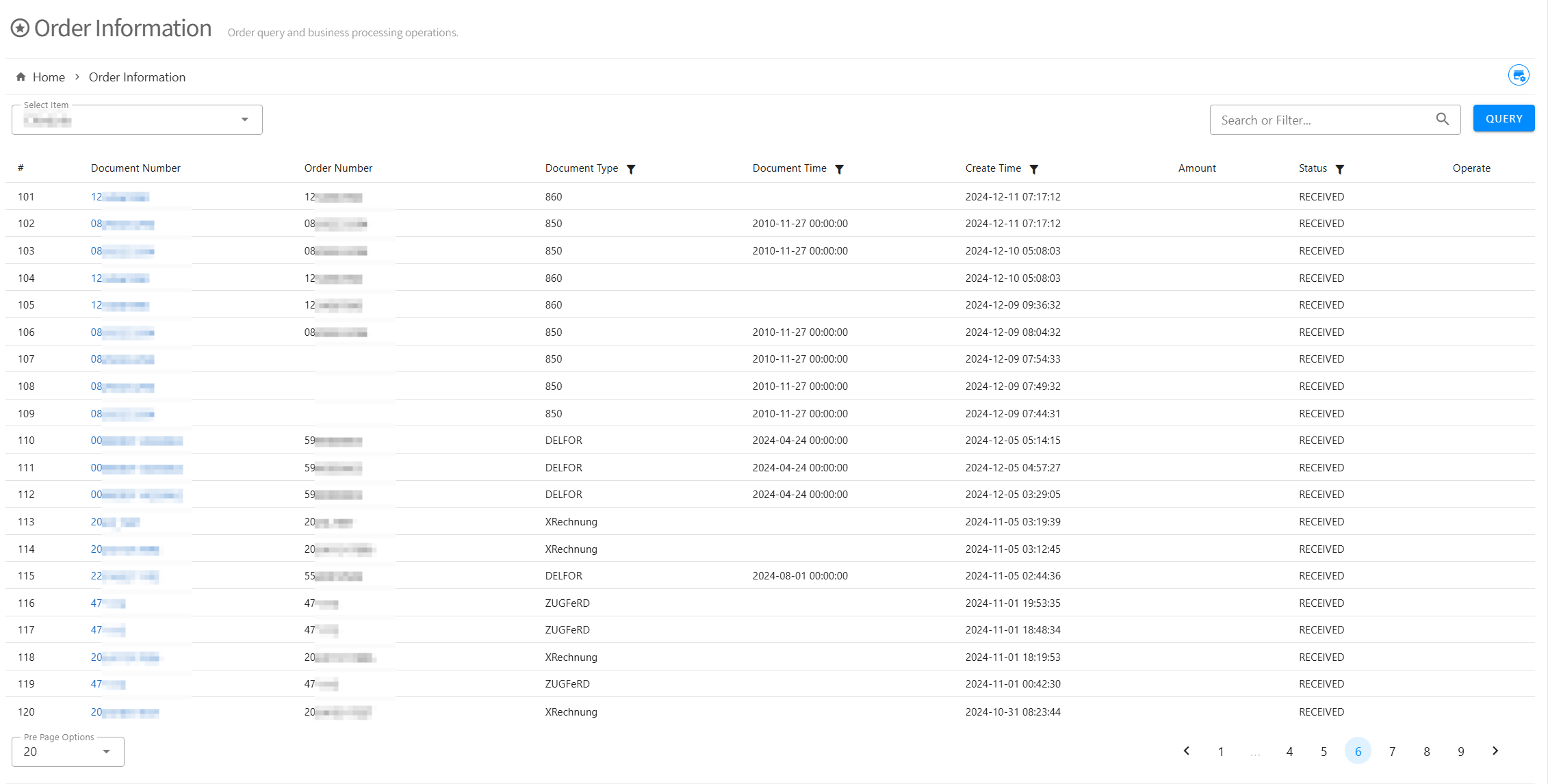
- Used to query received customer purchase orders, forecast orders, and other data.
For example:
- Purchase Order 850 (X12 Protocol - Purchase Order), ORDERS (EDIFACT Protocol - Purchase Order), etc.;
- Order Change 860 (X12 Protocol - Order Change), ORDCHG (EDIFACT Protocol - Order Change), etc.;
- Sales Order 852 (X12 Protocol - Shipment Sales Data), SLSRPT (EDIFACT Protocol - Sales Order Data), etc.;
- Order Forecast 830 (X12 Protocol - Forecast Order), DELFOR (EDIFACT Protocol - Long-term Delivery Schedule), DELJIT (EDIFACT Protocol - Short-term Delivery Schedule), 4905 (VDA Protocol - Long-term Delivery Schedule), 4915 (VDA Protocol - Short-term Delivery Schedule), etc.;
- Query order detailed information
You can view all detailed information of the current order based on the order number. Order details can be customized according to customer business needs.
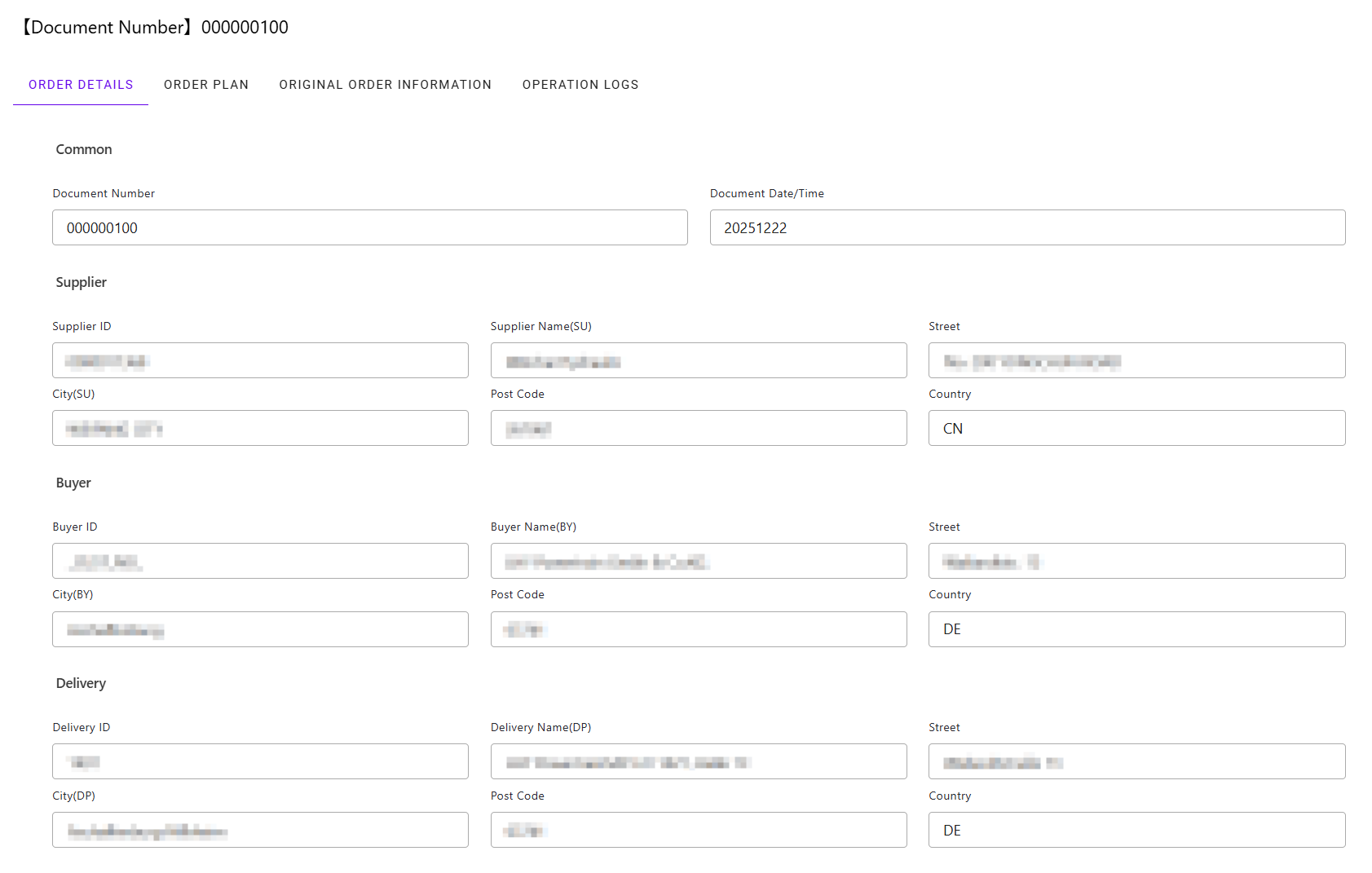
- Query order material data details
Order Schedule: Can display and query detailed logistics and data of purchase orders/forecast orders.
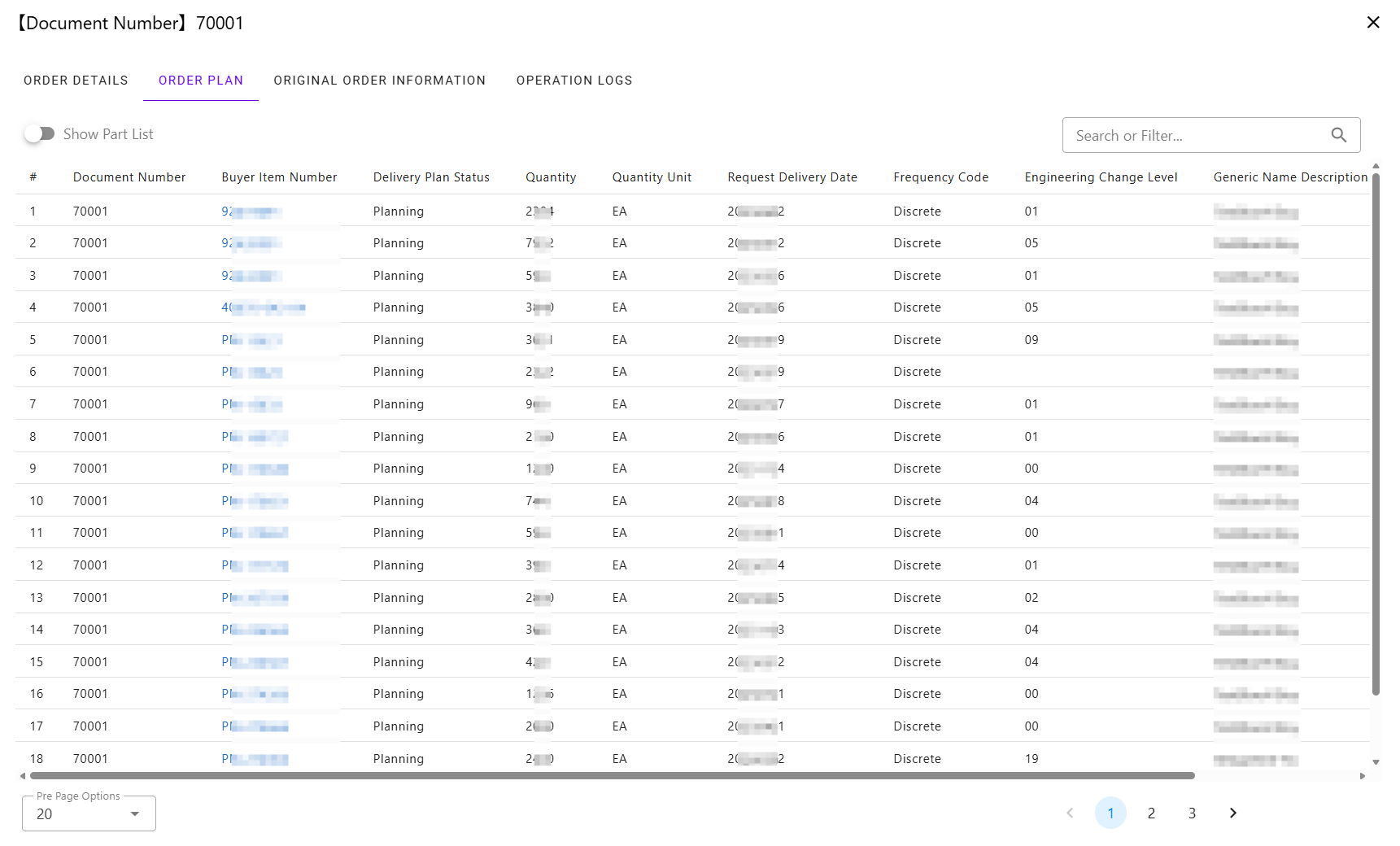
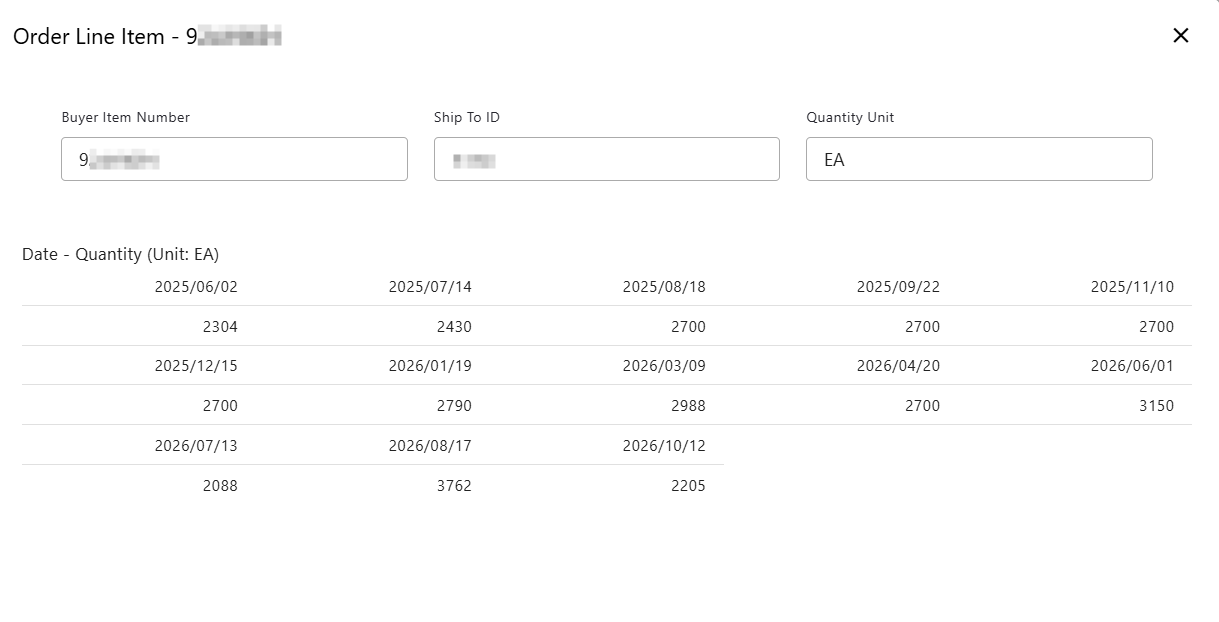
- Display single material detail data
Order Operations
Order query and processing of business operations such as order acceptance, rejection, cancellation, etc.
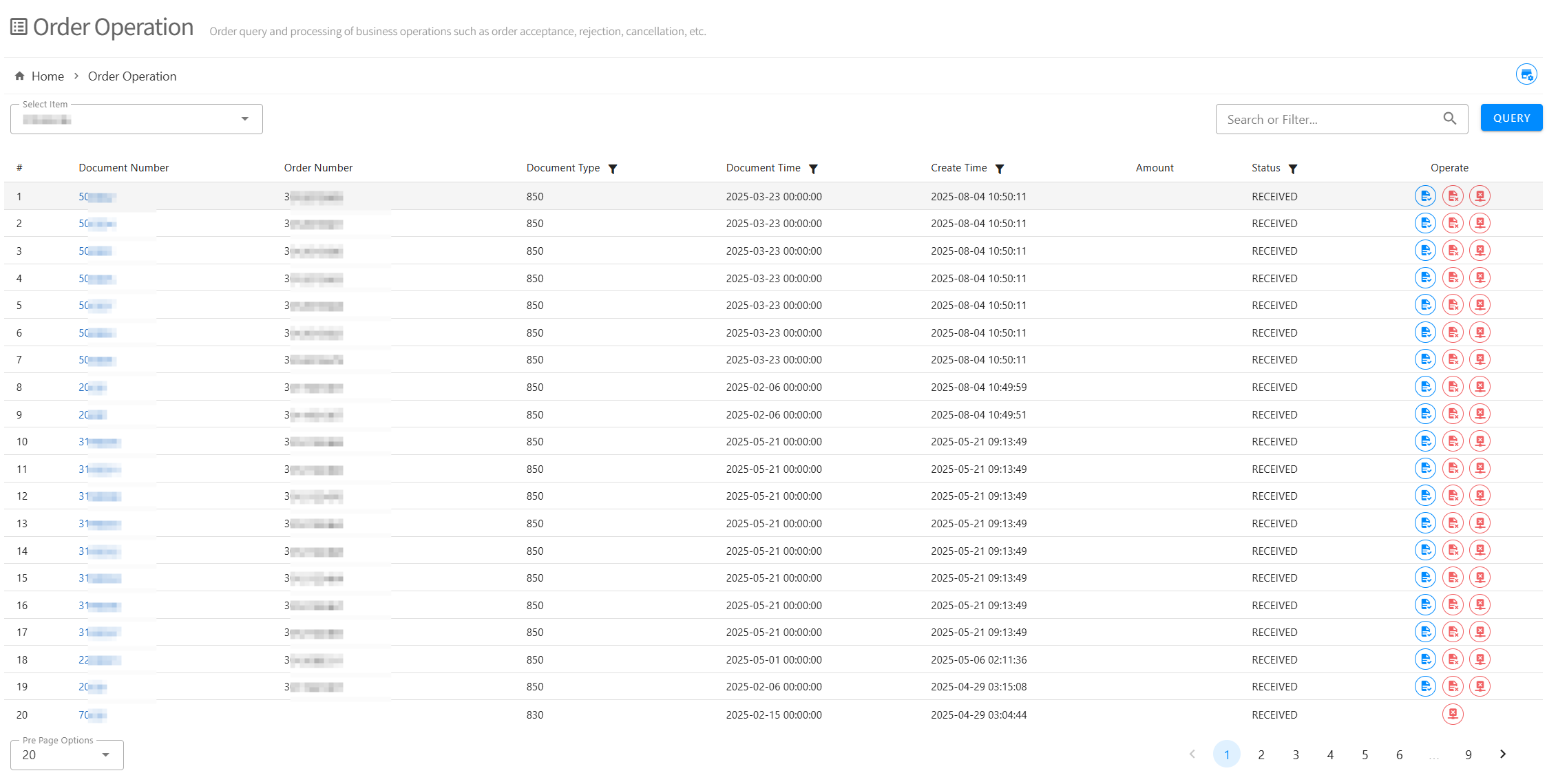
Depending on the business, functional operations may have some differences.
For example, purchase order confirmation:
- After receiving the order, the system order list can query the latest order records, and the order status is "Received";
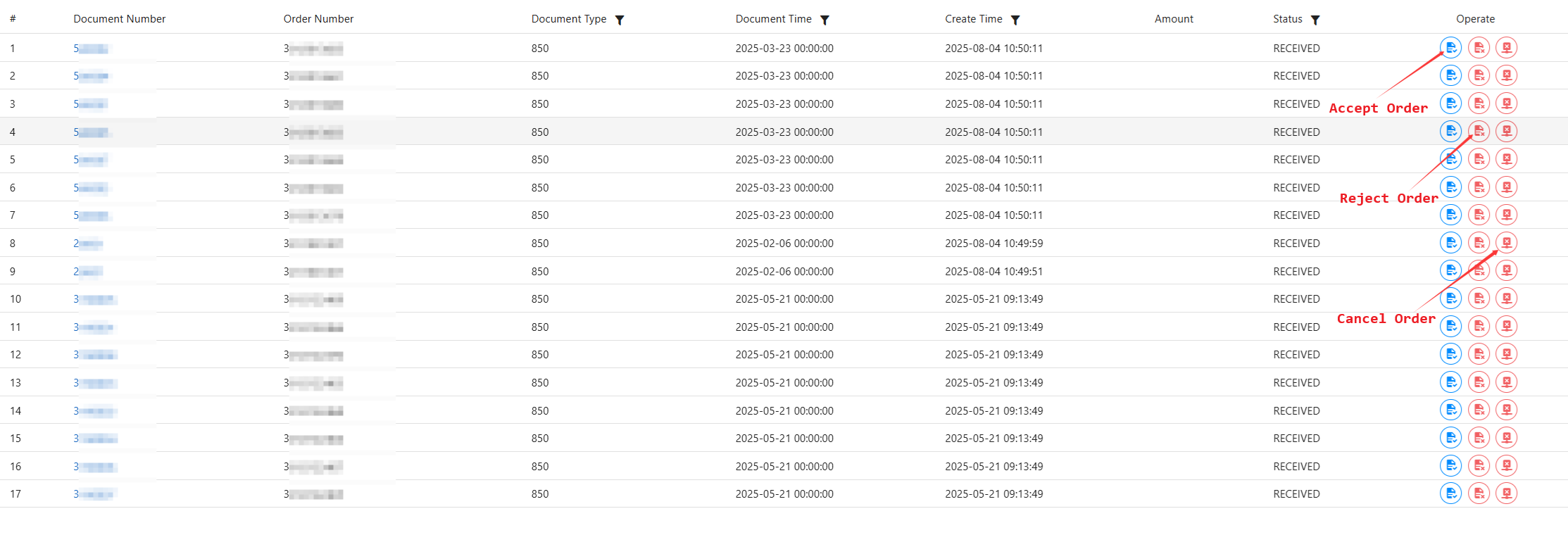
After receiving the purchase order, customers perform operations such as "Order Confirmation", "Order Rejection", "Order Deletion", "Order Cancellation" according to business needs (some businesses require automatic order reception and can skip this step).
After order confirmation, the interface status is updated after successful business processing; if processing fails, the status is not updated and can be retriggered.

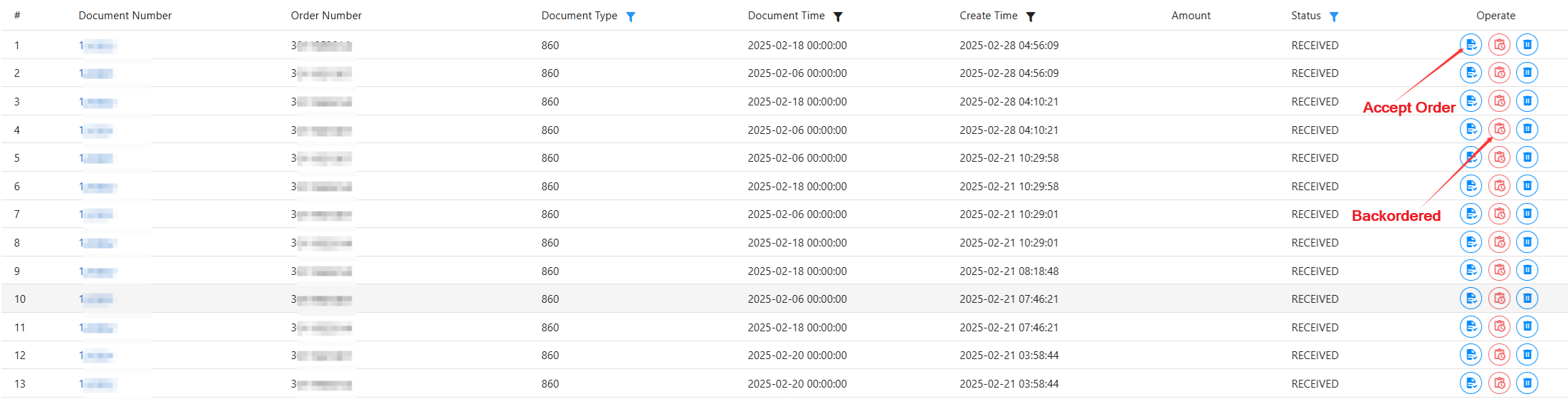
- After receiving order changes, customers perform operations such as "Order Confirmation", "Order Delayed Delivery", "Order Deletion", "Order Cancellation" according to business needs (some businesses require automatic order reception and can skip this step).
- "Order Confirmation" requires selecting the "Committed Delivery Date", then clicking "Confirm" again to send the corresponding confirmation information to the customer.
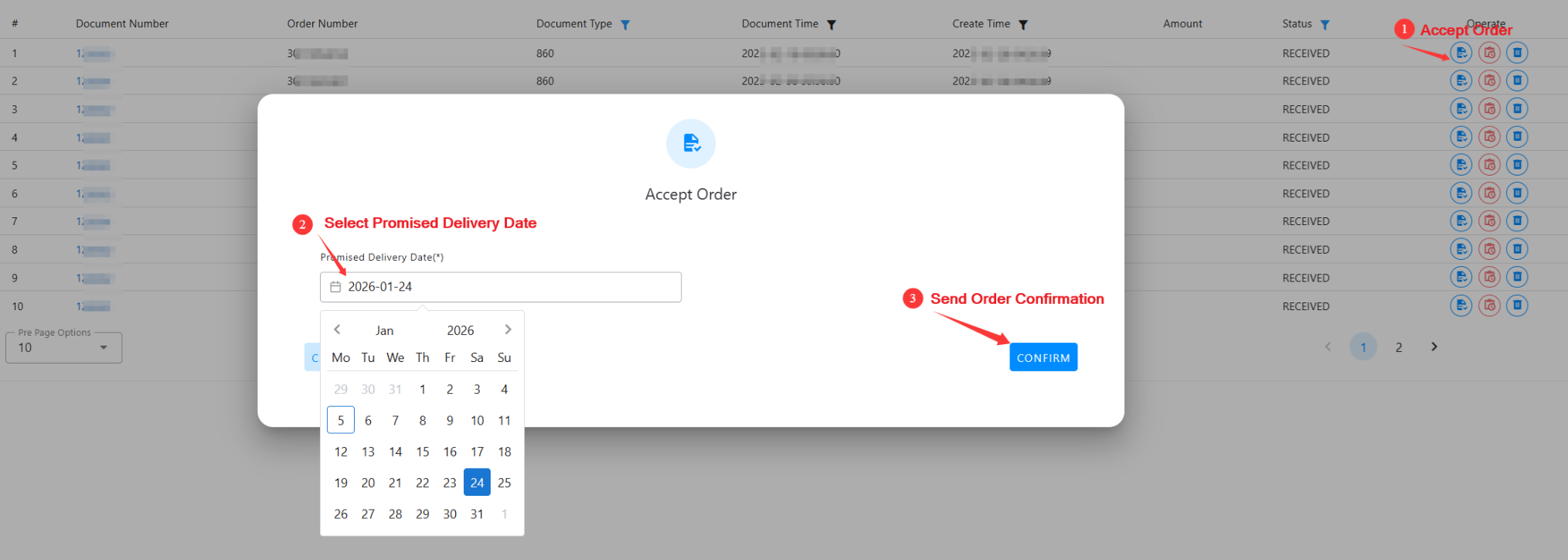
Under the AS2 and OFTP2 data transmission protocol framework, the system implements an instant transmission mechanism for business reports according to protocol specifications, and message content cannot be withdrawn or changed. Therefore, after the order confirmation message is sent to the customer, if there are changes to the delivery date, offline or email communication with the customer is required.
Message Sending (Despatch Advice)
Mainly sends 856 (X12 Protocol - Despatch Advice)/DESADV (EDIFACT Protocol - Despatch Advice)/4913 (VDA Protocol - Despatch Advice) despatch advice.
Before sending messages, you need to prepare actual shipping information, pallet/packaging information, material information, etc., for interface parameter input.
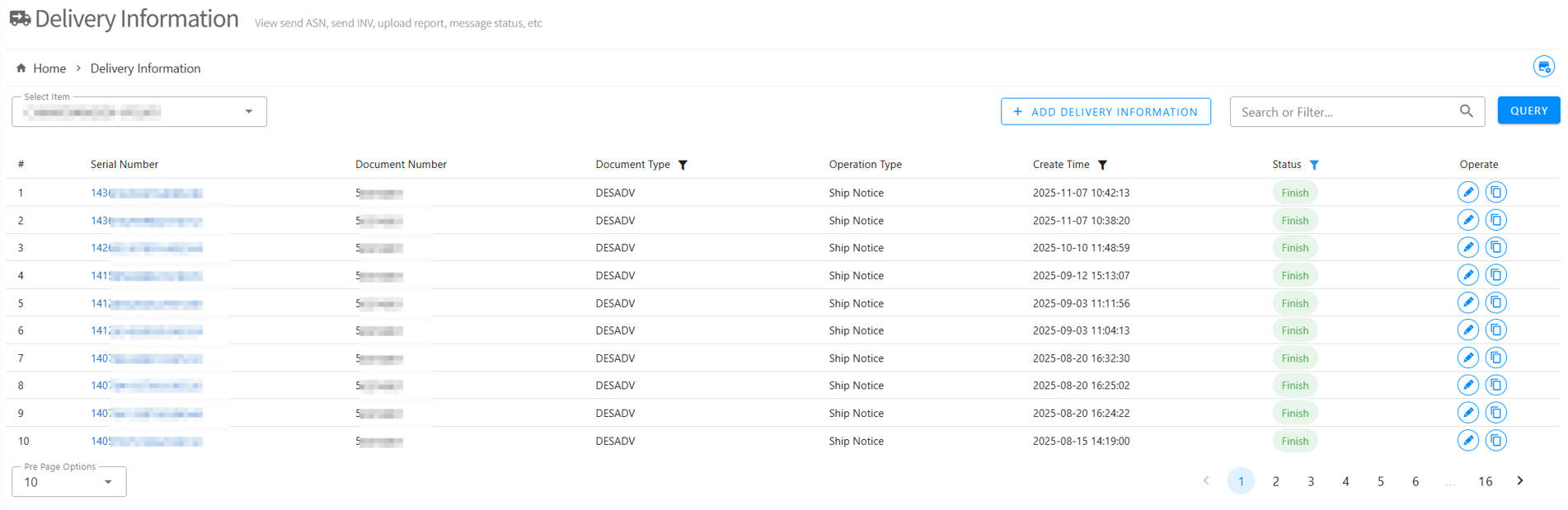
Add Shipping Information
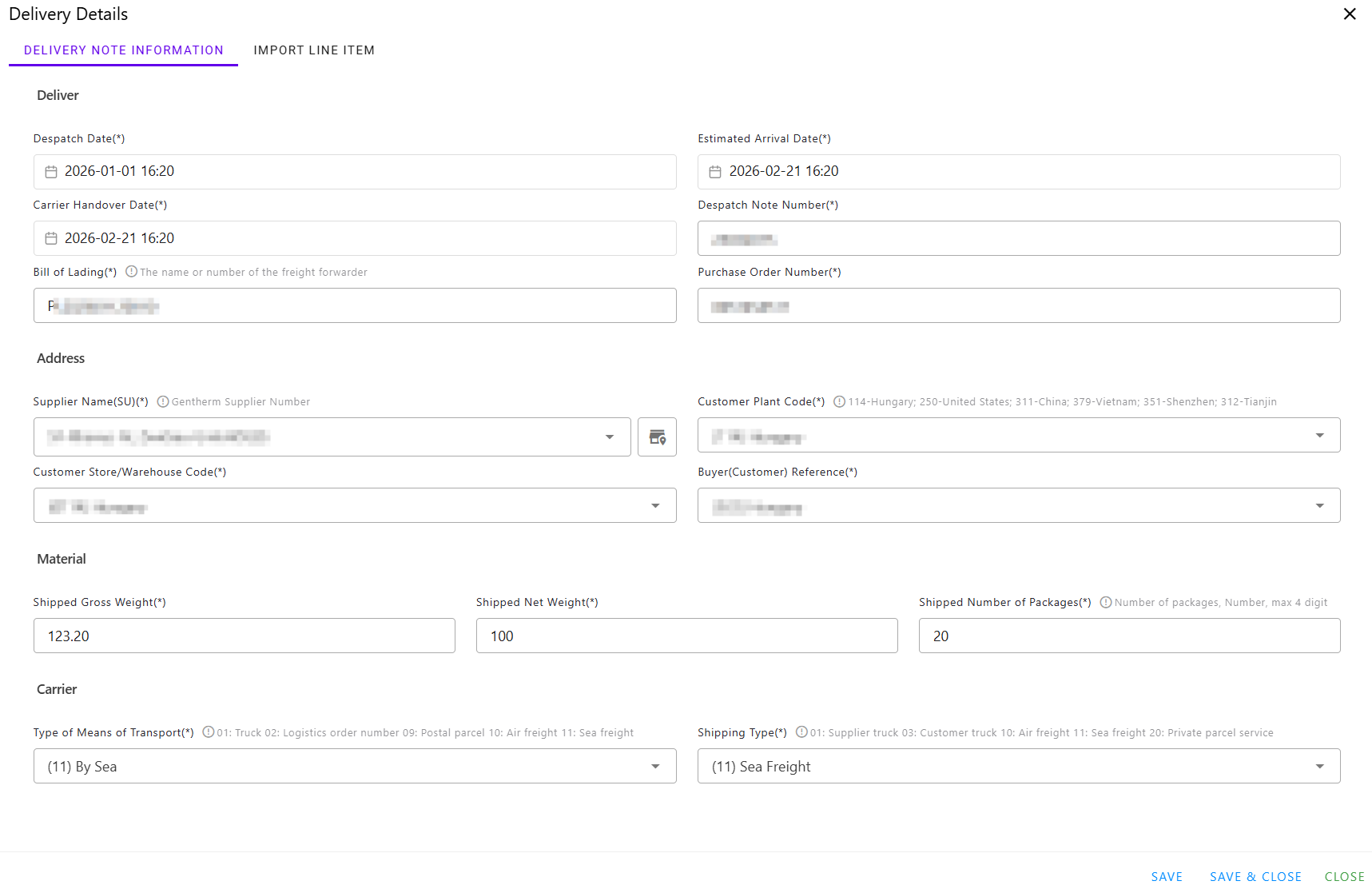
- Shipping Information: Despatch Date, Estimated Arrival Date, Conveyance Number, Bill of Lading, etc., should be filled in according to actual shipping information;
- Location Information: Generally not changed (as agreed with the customer; if changed, the customer needs to be notified in advance), preset in address management.
- Unloading Location/Port: Generally a fixed value, fill in the code corresponding to the unloading location/port (e.g., 2302).
- Material Information: Fill in according to actual shipping information.
- Carrier Information: Fill in according to actual shipping information (can be left blank if not applicable).
Add Pallet/Outer Packaging
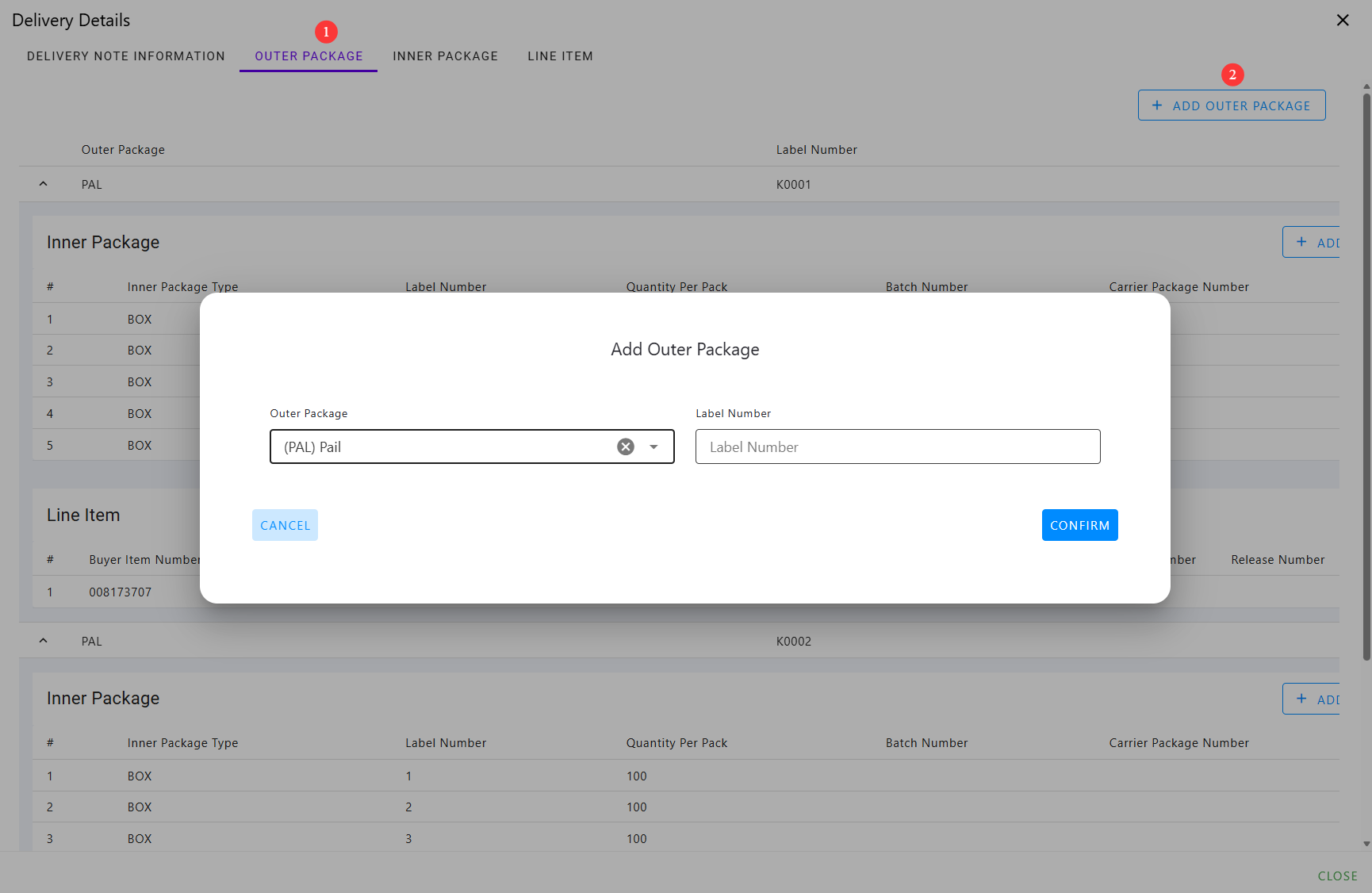
Fill in pallet/packaging information, including pallet/packaging type, pallet/packaging label number, etc.
- Package Type Identifier: Type of material loading/boxing/pallet (e.g., PAL, BOX, etc.);
- Label Number: Fill in according to actual pallet/packaging label number, ensuring it is unique within an order (e.g., A1, A2, B1, K00001, etc.).
Add Box/Inner Package Information
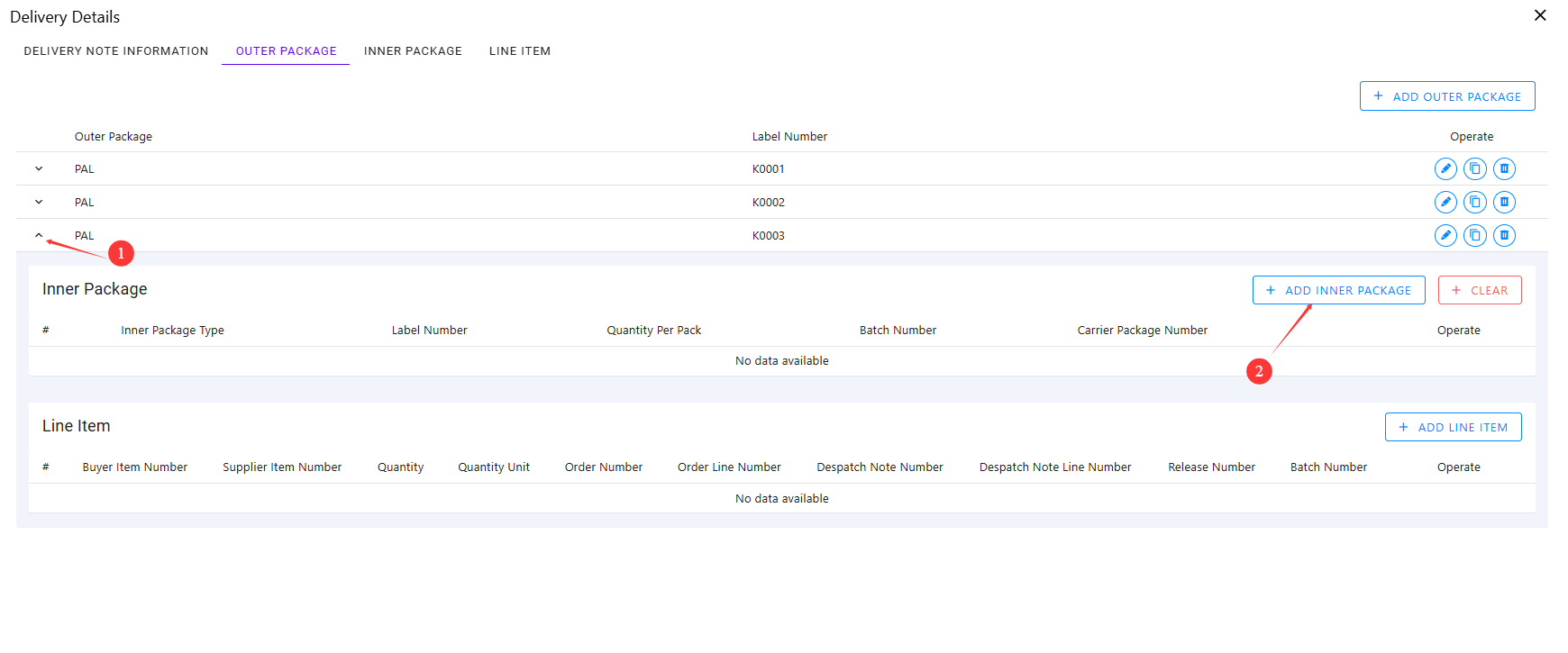
- Open the "Add Package Information" dialog interface.
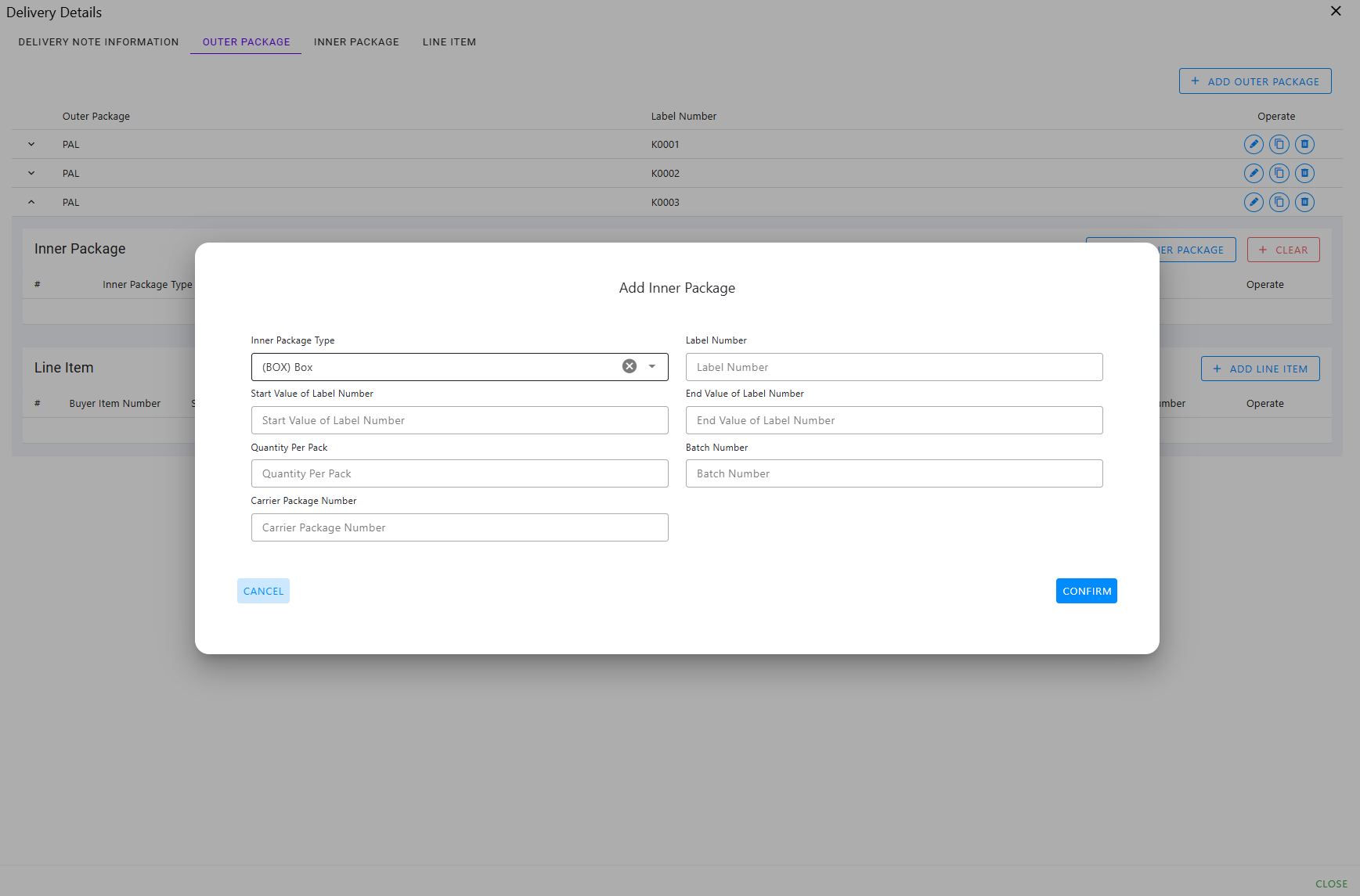
Fill in box/inner packaging information, including box/packaging type, box/packaging label number, quantity per package, batch number, etc.
- Package Type Identifier: Type of box/inner packaging in the pallet (e.g., PAL, BOX, etc.);
- Label Number: Fill in according to actual box/inner packaging number (can be automatically generated based on start and end numbers; generally, ensure box label numbers are unique within an order);
- Quantity Per Package: Quantity of materials in each package. A pallet can contain different types of packages with different capacities (as shown below, containing BOX1 and BOX2, with BOX1 containing 50 pieces and BOX2 containing 100 pieces);
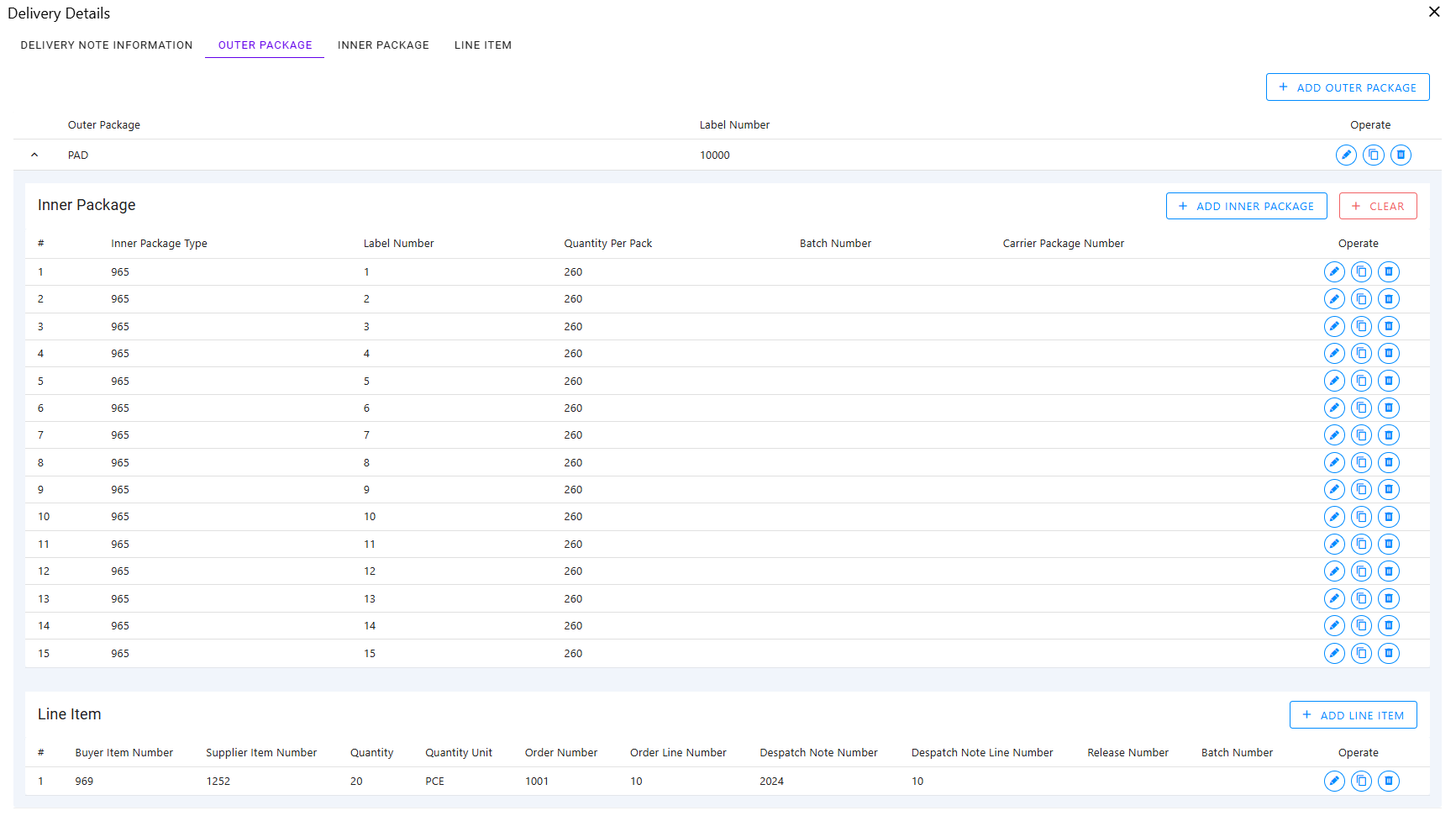
- Batch Number: Batch number of the package materials; can be left blank if not available (optional);
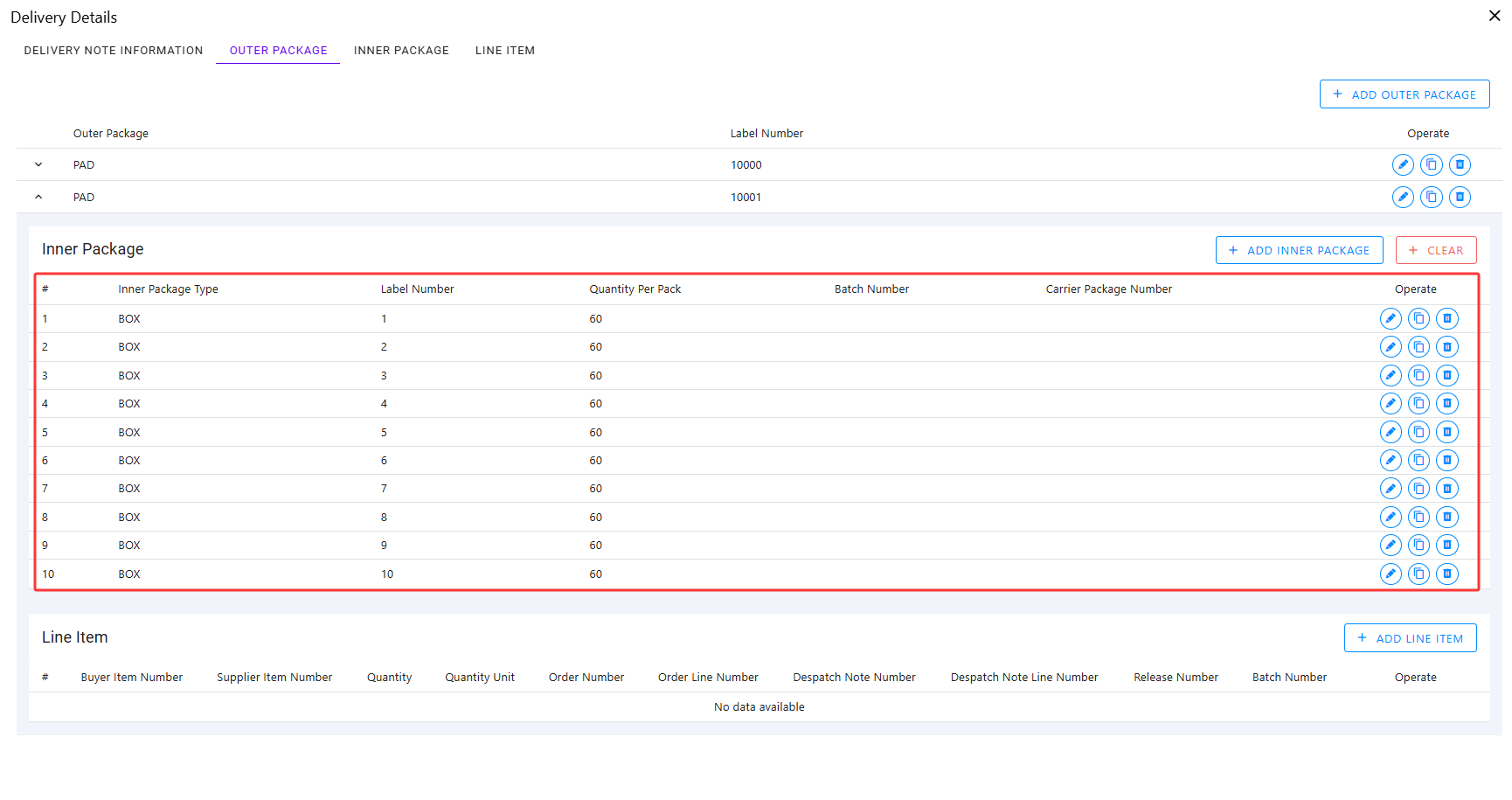
- Batch fill inner packaging information
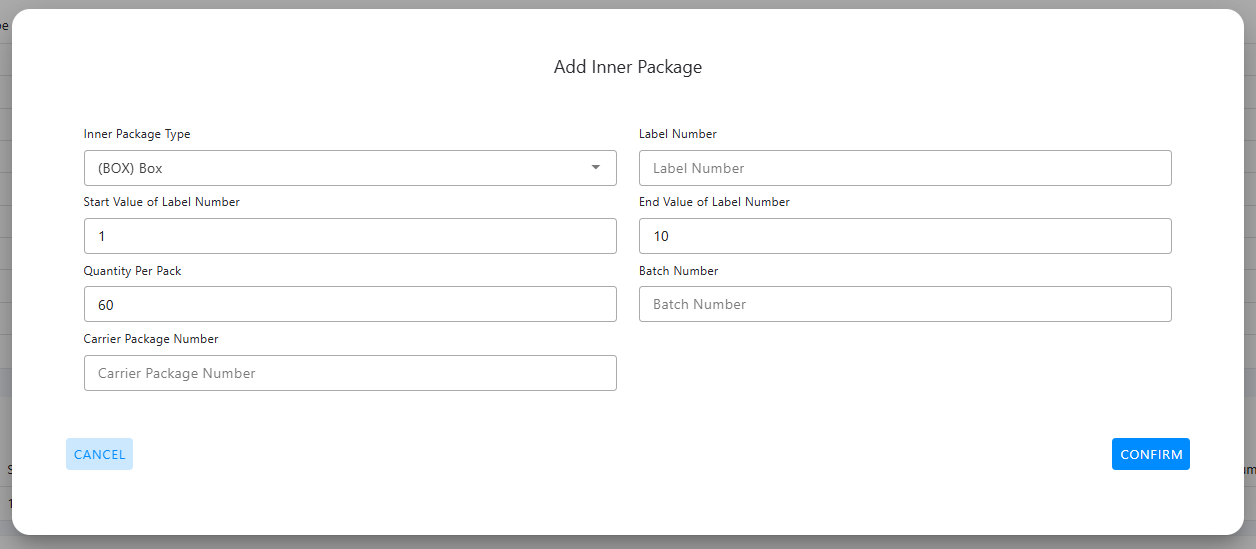
Fill in the start and end label numbers to generate a set of inner packaging information.
Add Material Information
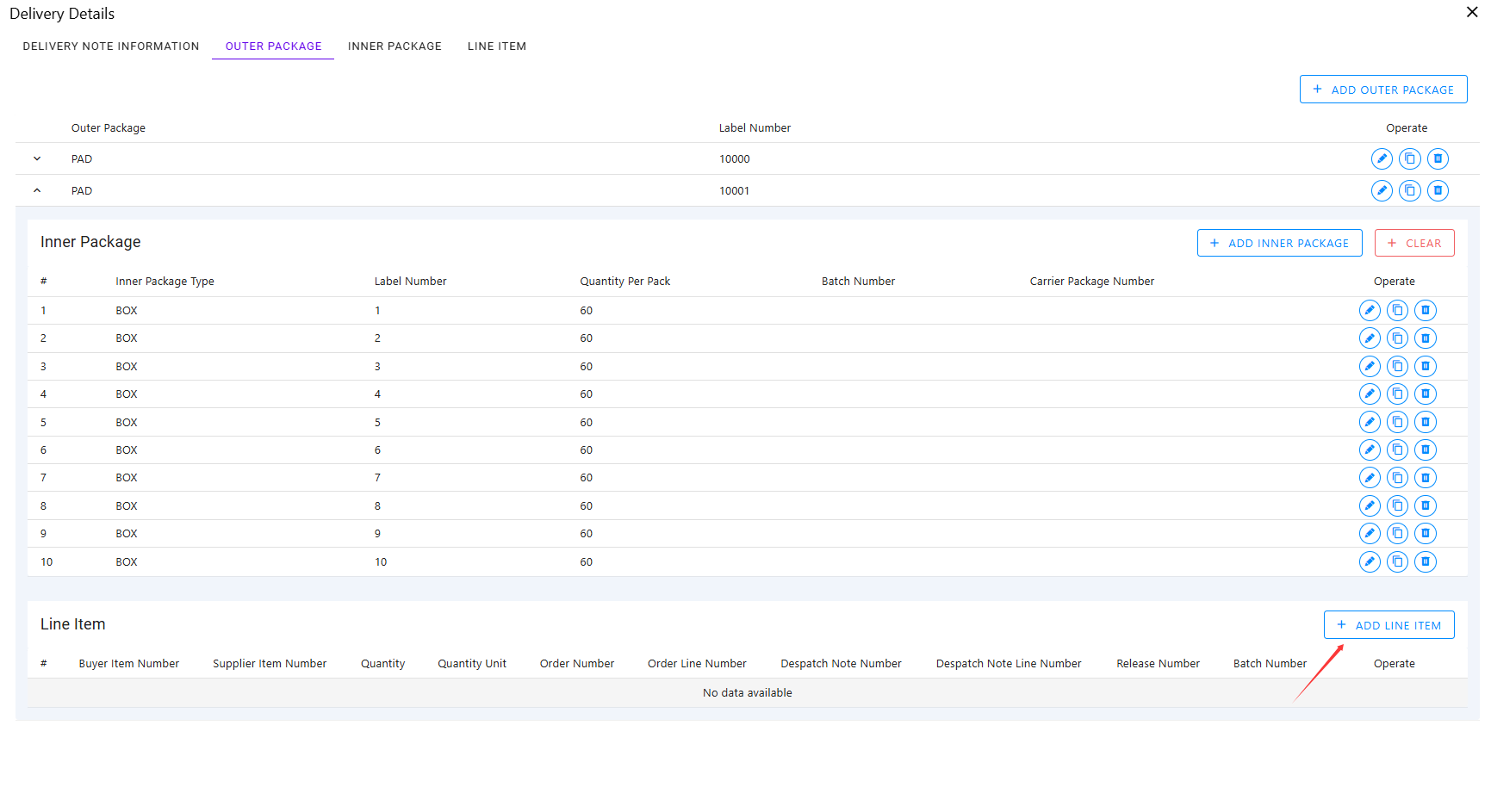
- Open the "Add Material Information" dialog interface.
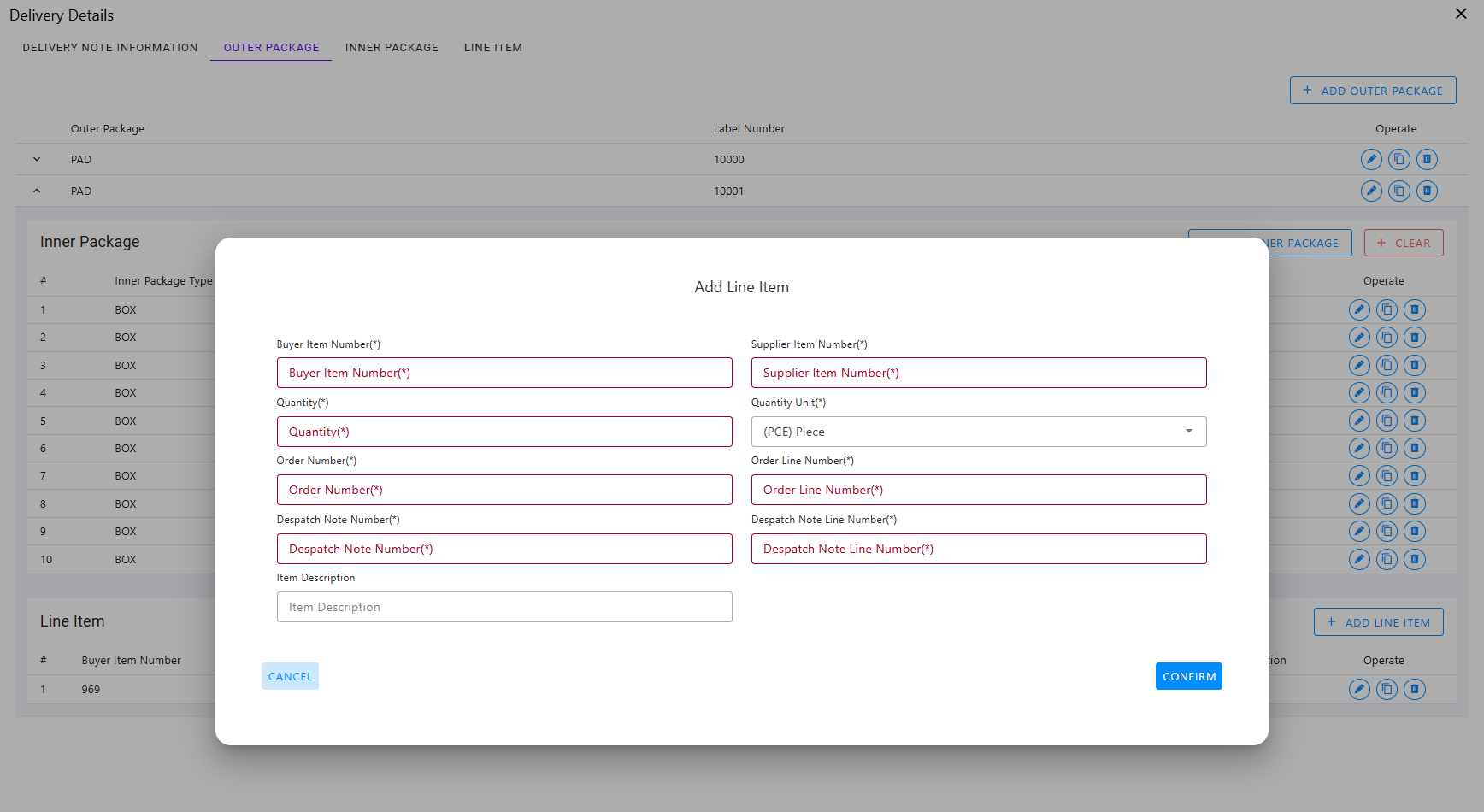
- Buyer Item Number: Partner's material number (provided in customer order forecast);
- Supplier Item Number: Supplier's material code (corresponding to buyer item number);
- Quantity: Total quantity of materials in the package, fill in according to actual shipping quantity;
- Quantity Unit: Generally fixed as PCE (PIECE), representing pieces;
- Order Number, Order Line Number: Fill in according to actual shipping order (provided in customer order forecast).
- Delivery Note Number, Delivery Note Line Number: Fill in according to actual shipping order.
Query Package Information List
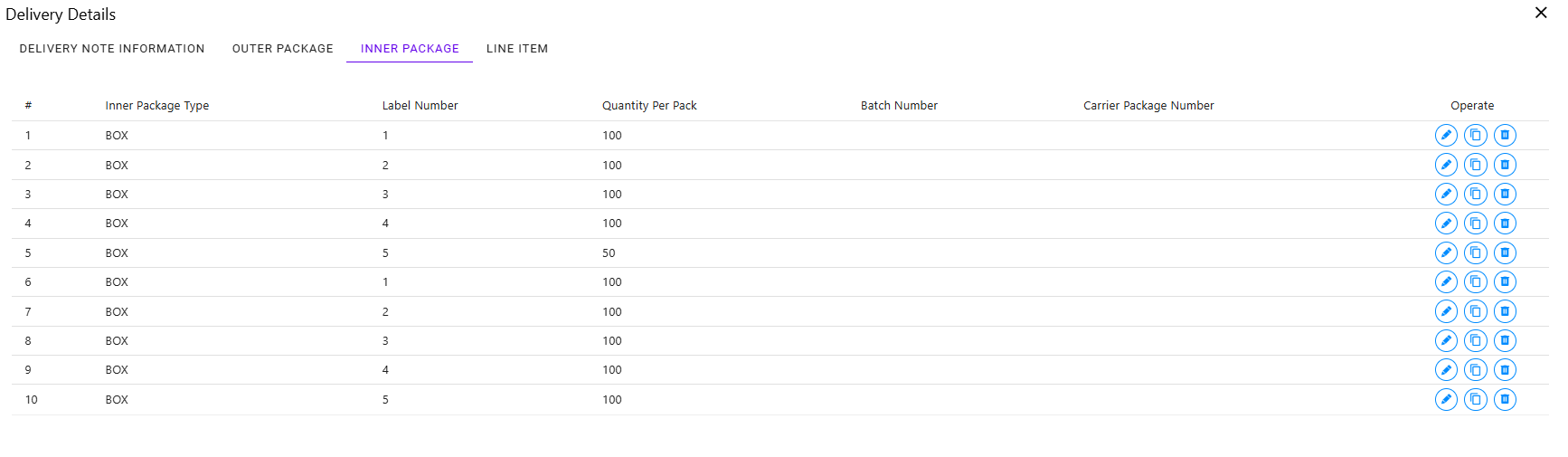
Query Material Information List

Send Despatch Advice
After filling in and saving shipping information, a record with Unprocessed status will be generated.
Click "Despatch Advice", and the message will be pushed to the customer in real-time through the data integration platform.
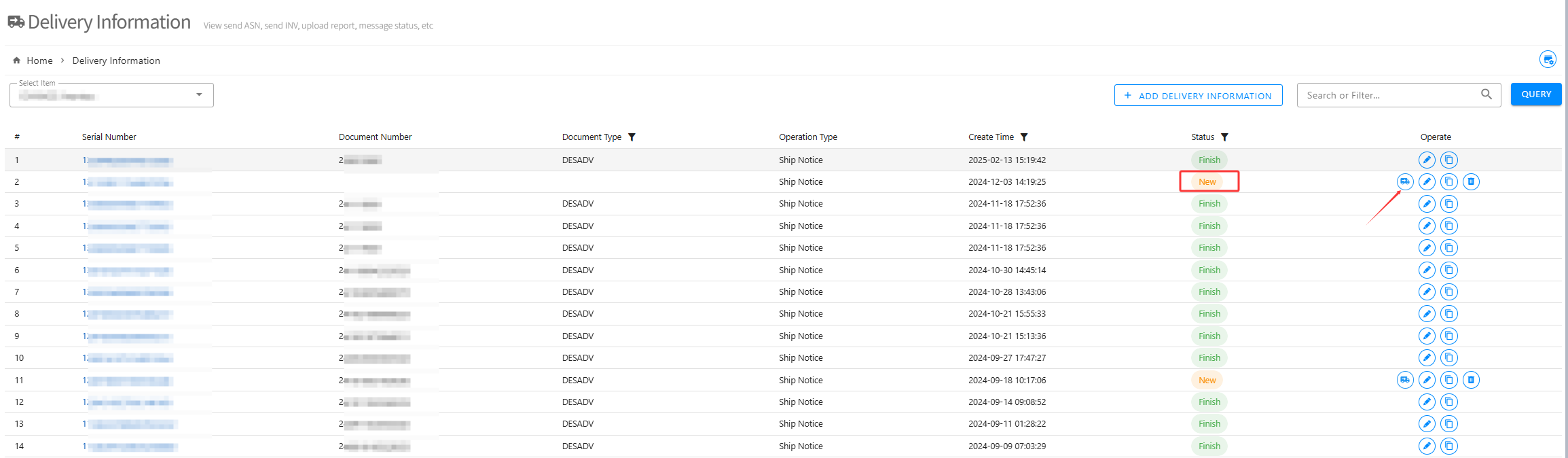
- Unprocessed shipping information can be modified;
- Processed shipping information cannot be modified and cannot be resent;
- Failed shipping information can be modified and resent.
View Despatch Delivery Note Information
Processed shipping information indicates that the despatch advice has been successfully sent to the customer. Click the Serial Number on the interface to query specific delivery note information.
- Delivery Note Information
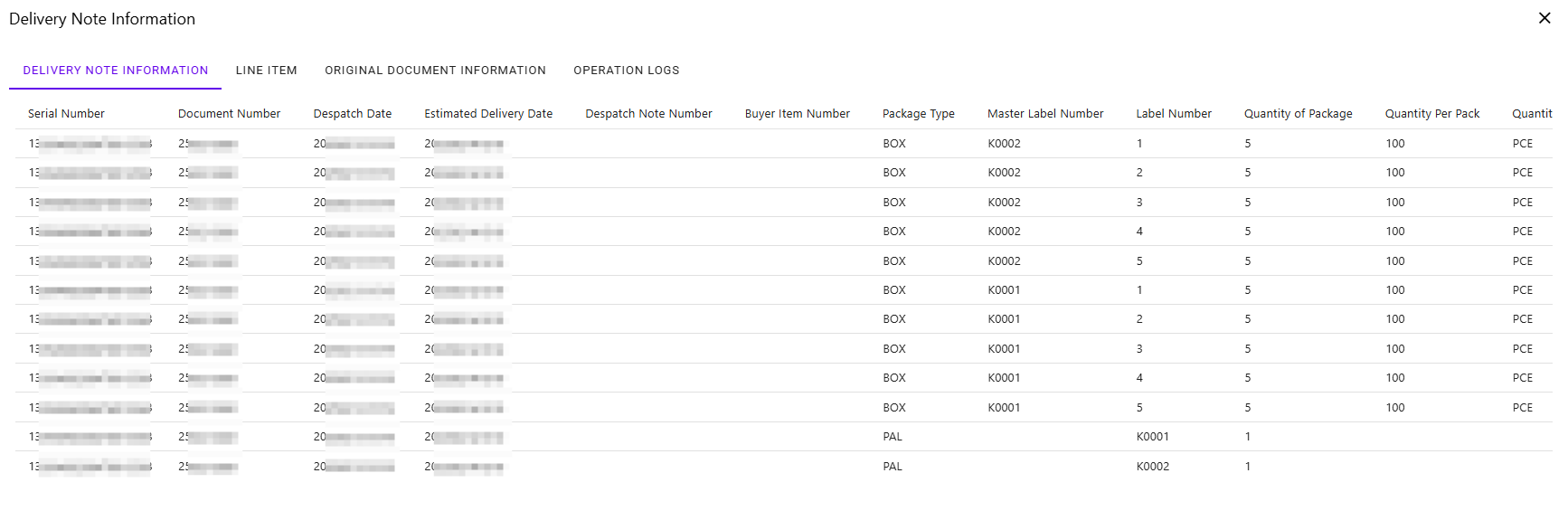
- Material Information

Message Sending (Send Invoice/Bill)
Mainly sends 810 (X12 Protocol - Invoice)/INVOIC (EDIFACT Protocol - Invoice)/4906 (VDA Protocol - Invoice) invoices.
Before sending messages, you need to prepare actual invoice information, invoice amount, tax amount, settlement information, etc., for interface parameter input.
Add Invoice Information (Query Order Details by Order Number)
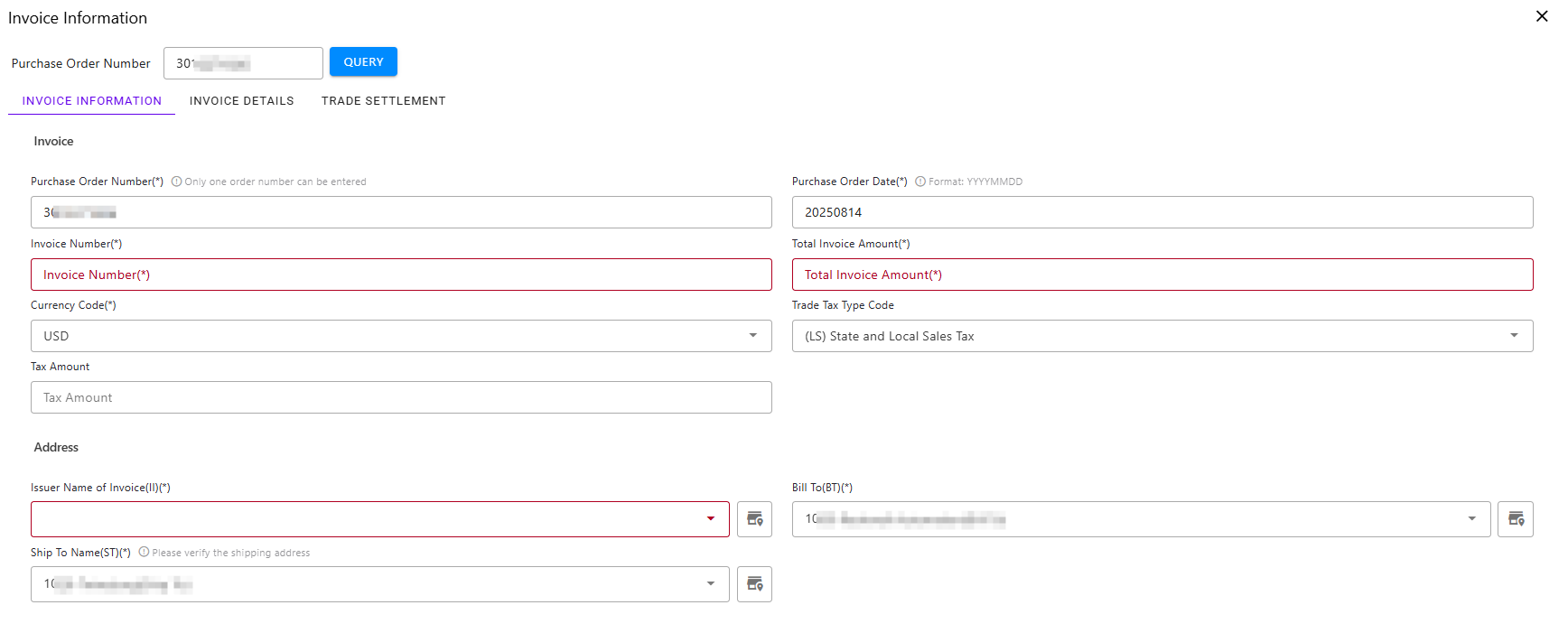
Query specified order information based on order number, need to complete invoice information, such as invoice number, invoice amount, shipment number, tax amount, receiving location, etc.
Supplement Invoice Information
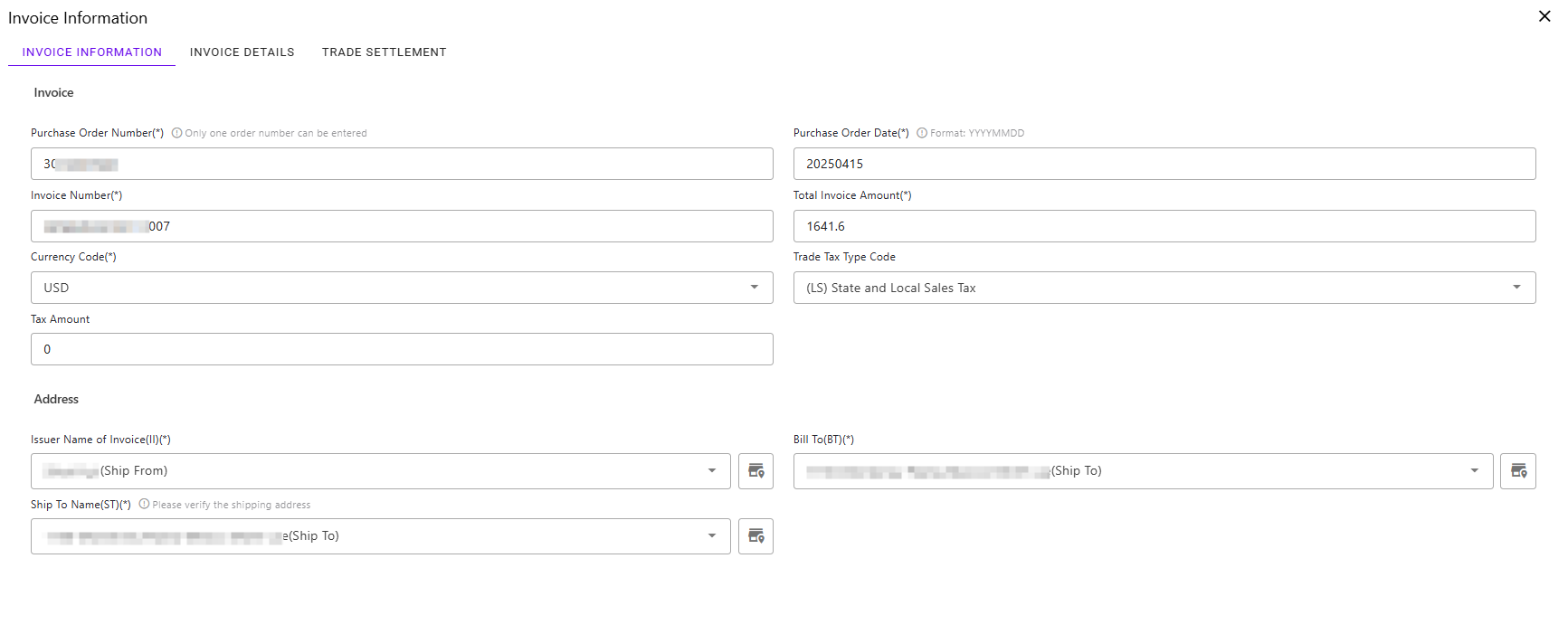
- Invoice Number: Electronic invoice number, cannot contain any punctuation, dashes, hyphens, spaces, etc., within 16 characters.
- Invoice Date: Invoice date format YYYYMMDD, 8 characters, e.g., 20250206.
- Receiving Location, Invoice Issuer, Payer Information: Select according to actual business.
Supplement Invoice Details

Complete the invoice information for each material, such as material billing price, product number, etc.
Supplement Settlement Information
If there is settlement information, please supplement (add as needed).

Add other settlement information for invoices.
- Service/Charge Type (Allowance or Charge Indicator Code):
| Type | Description |
|---|---|
| A | Allowance |
| C | Charge |
| N | No Allowance or Charge |
| P | Promotion |
| Q | Charge Request |
| R | Allowance Request |
| S | Service |
Payment Type (Service, Promotion, Allowance, or Charge Code)
For example: C310: Discount, D240: Freight, D500: Handling, etc.;
Send Invoice/Bill
After filling in and saving invoice information, a record with Unprocessed status will be generated.
Click "Ship Bill", and the message will be pushed to the customer in real-time through the data integration platform.
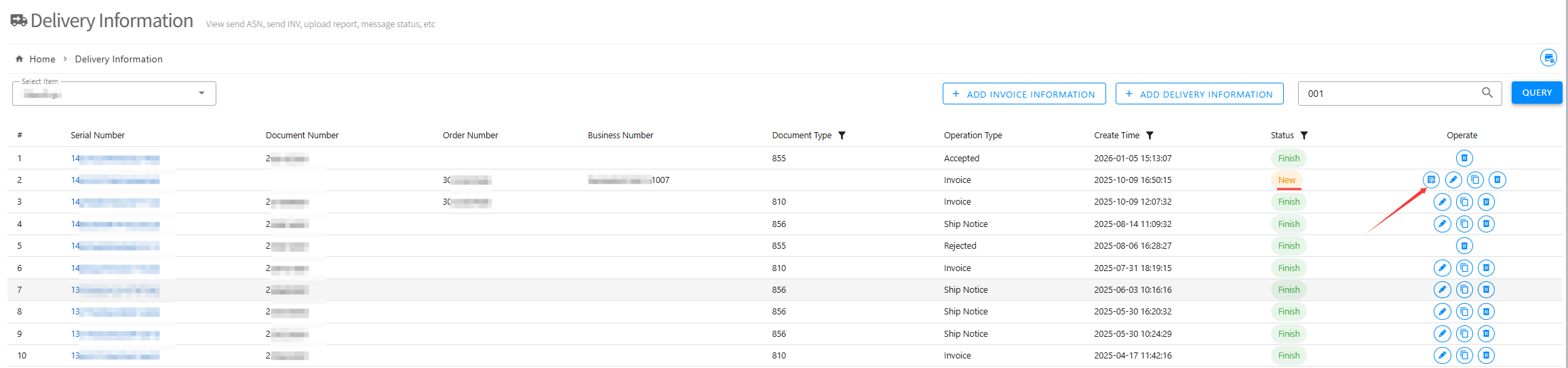
- Unprocessed invoice/bill information can be modified;
- Processed invoice/bill information cannot be modified and cannot be resent;
- Failed invoice/bill information can be modified and resent.
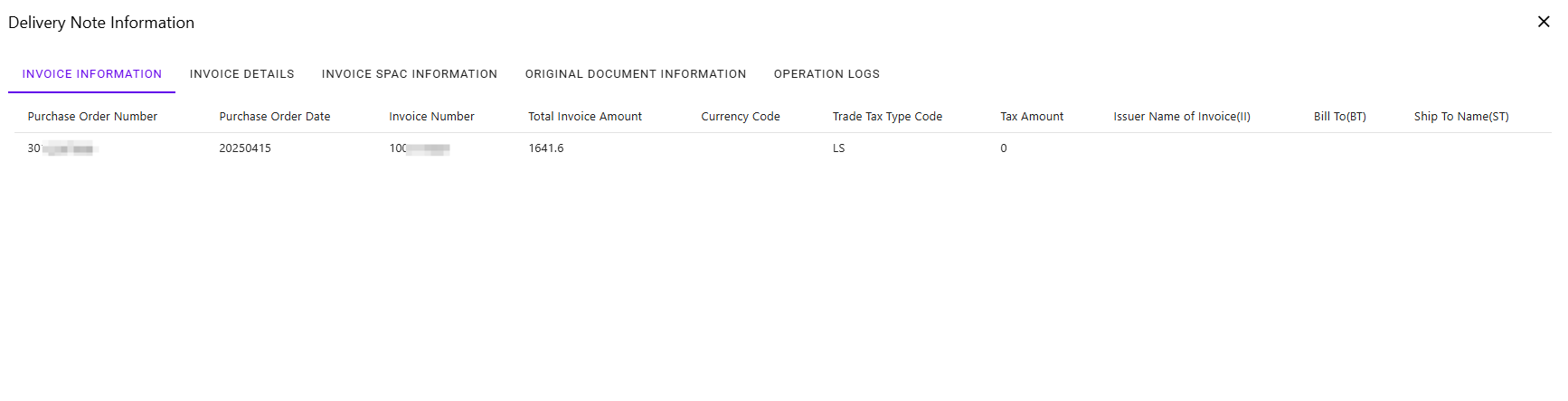
View Invoice Delivery Note Information
Processed invoice/bill information indicates that the invoice has been successfully sent to the customer. Click the Serial Number on the interface to query specific delivery note information.
- Invoice Information
- Invoice Details

- Service Charge Information

Invoice Information
Invoice Query
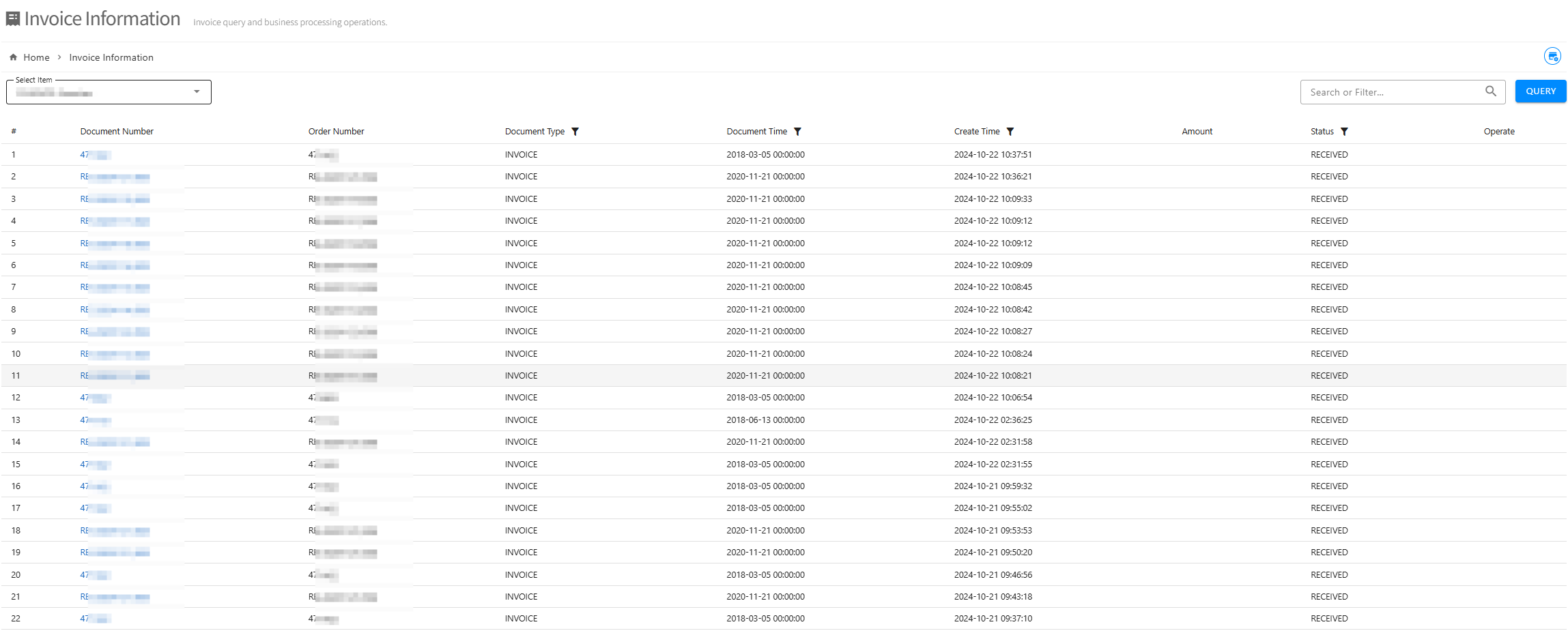
Invoice Information
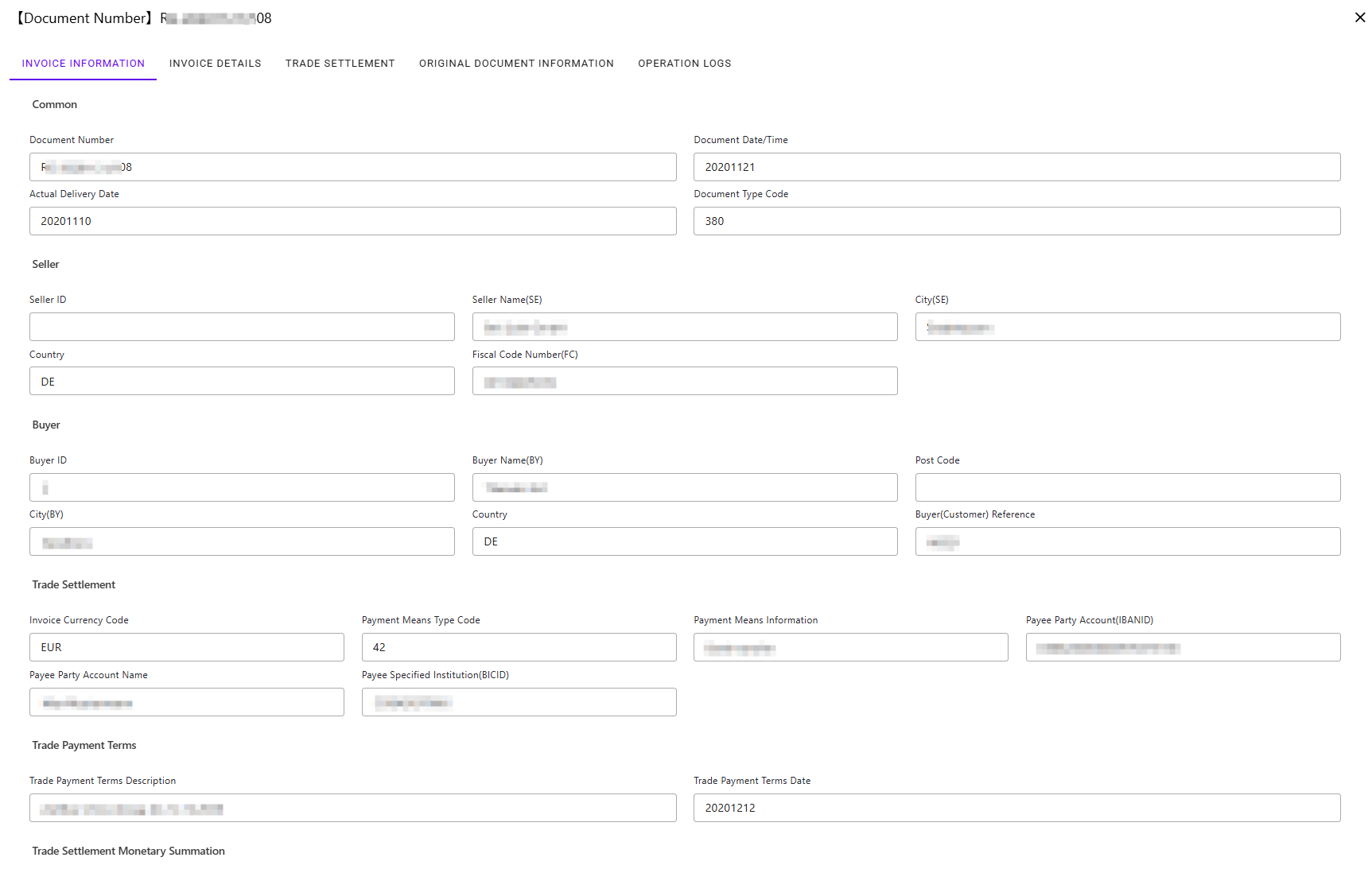
Invoice Details

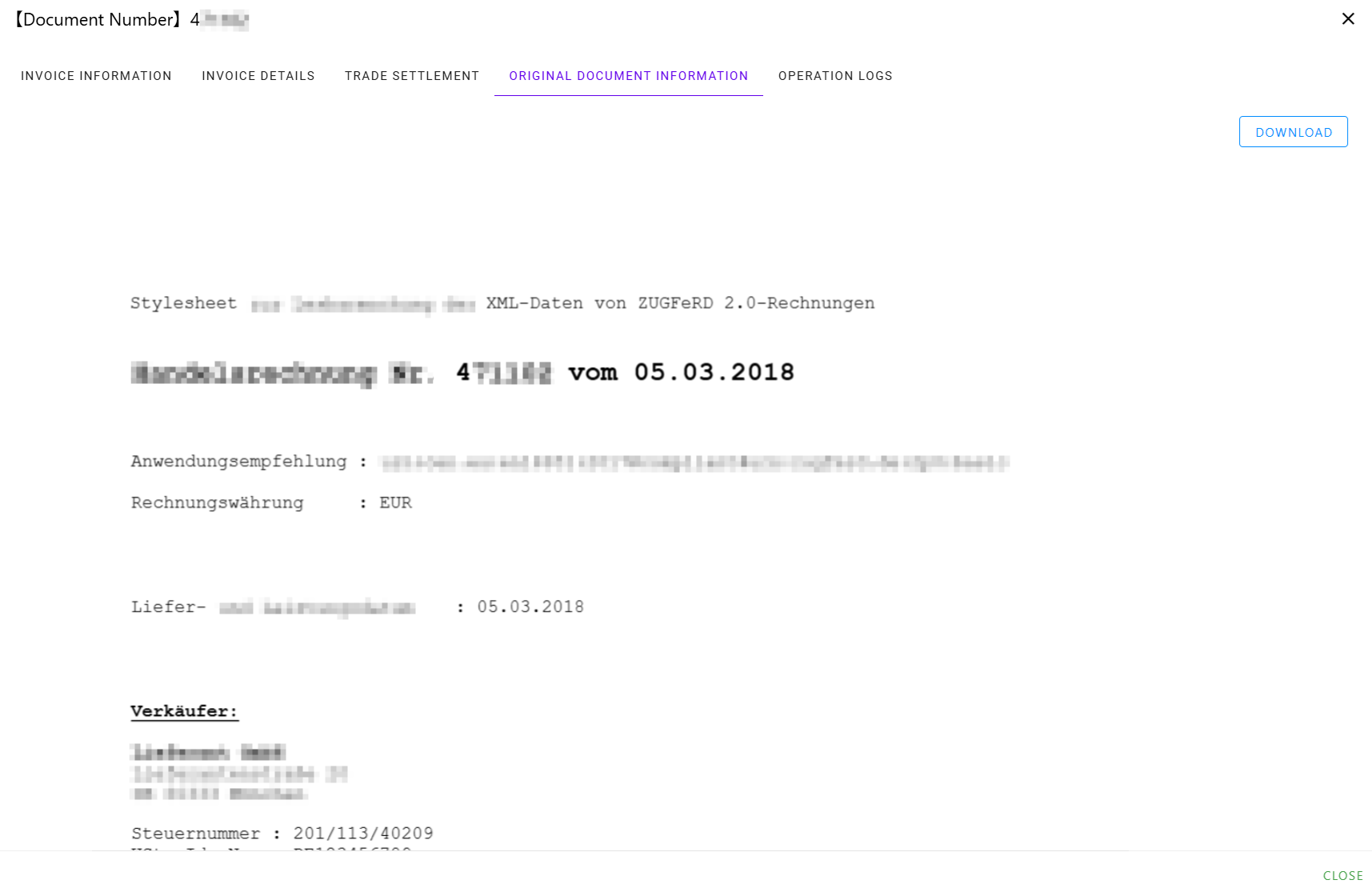
Original Invoice Information (PDF/A Format Invoice Example)
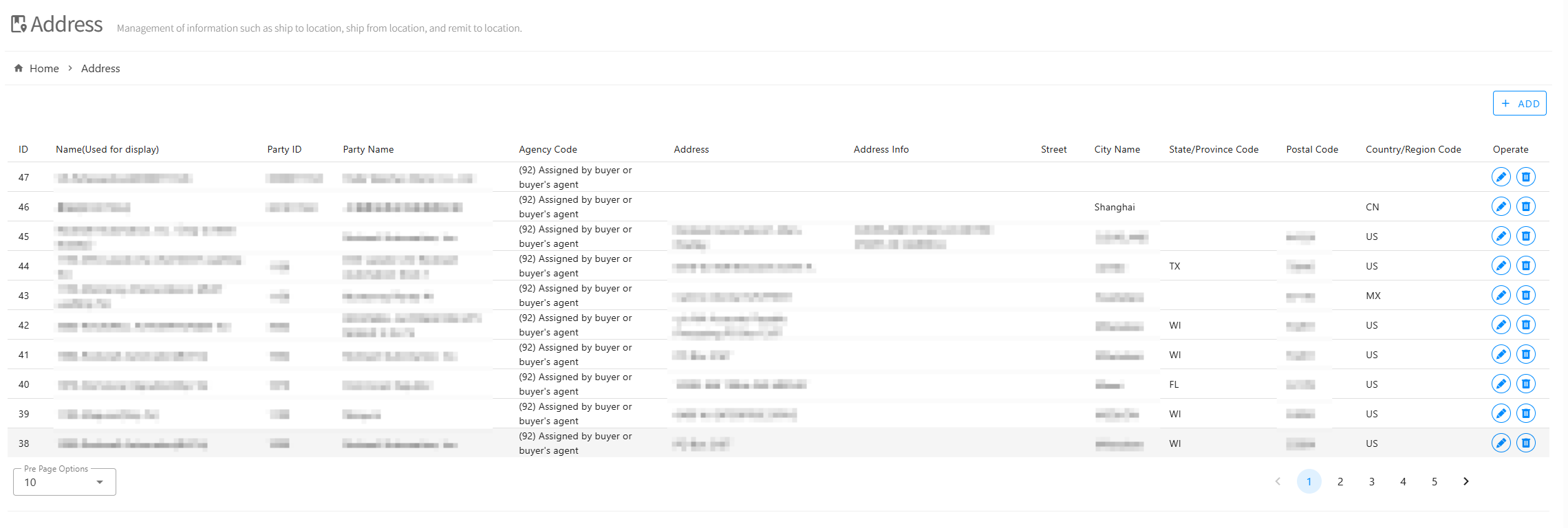
Address Management
Management of receiving location, shipping location, remittance location, and other information
Settings Functions
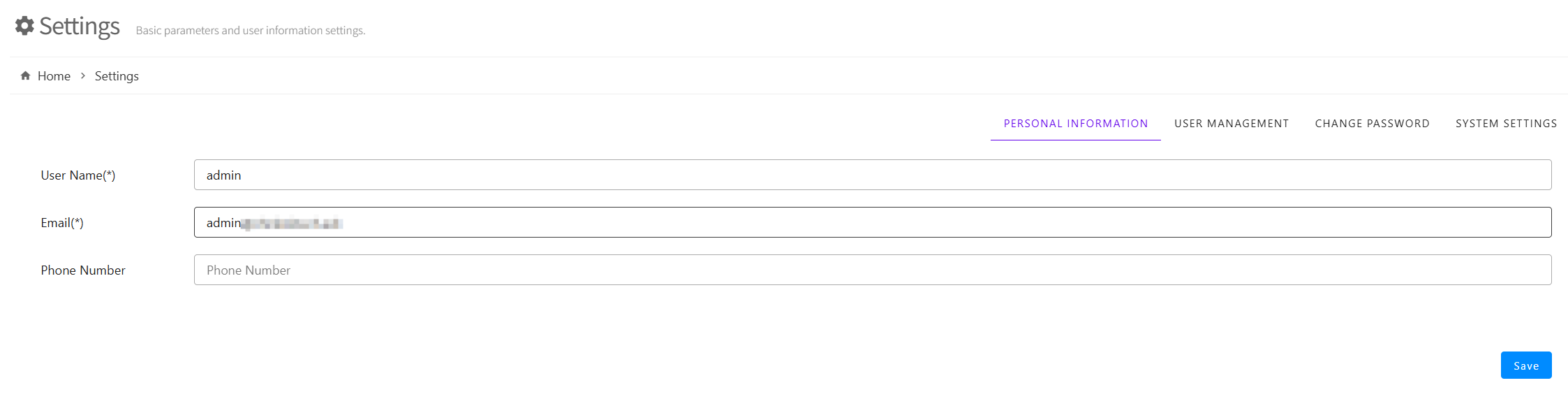
Settings functions mainly include personal information, permission management, and other operations.
Personal Information
Used to modify personal login information, etc.
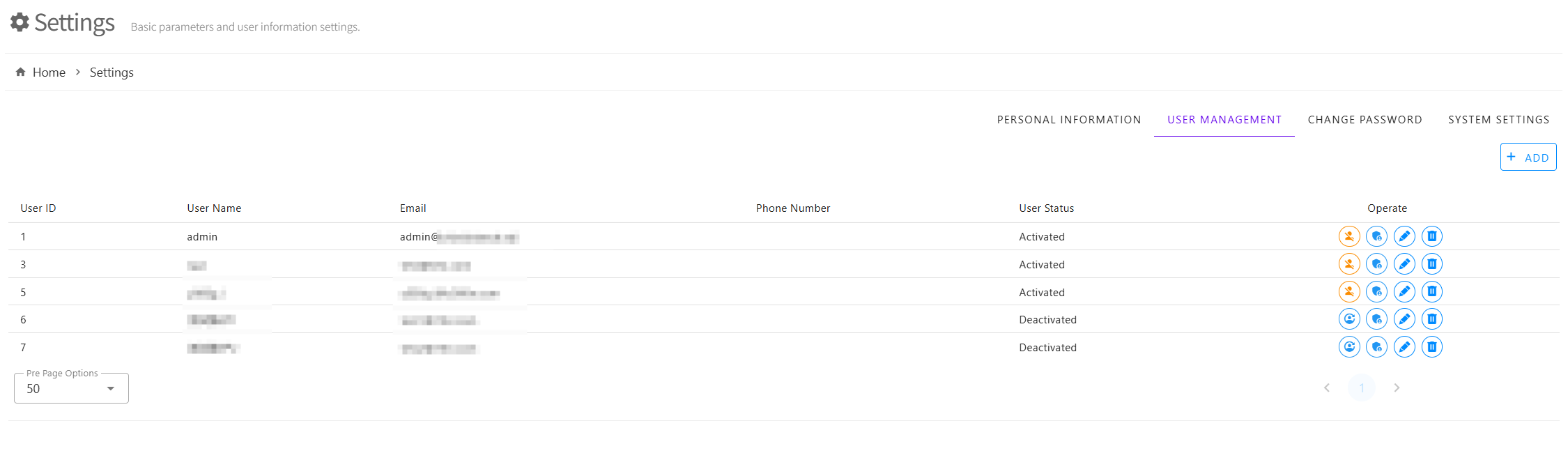
User Management
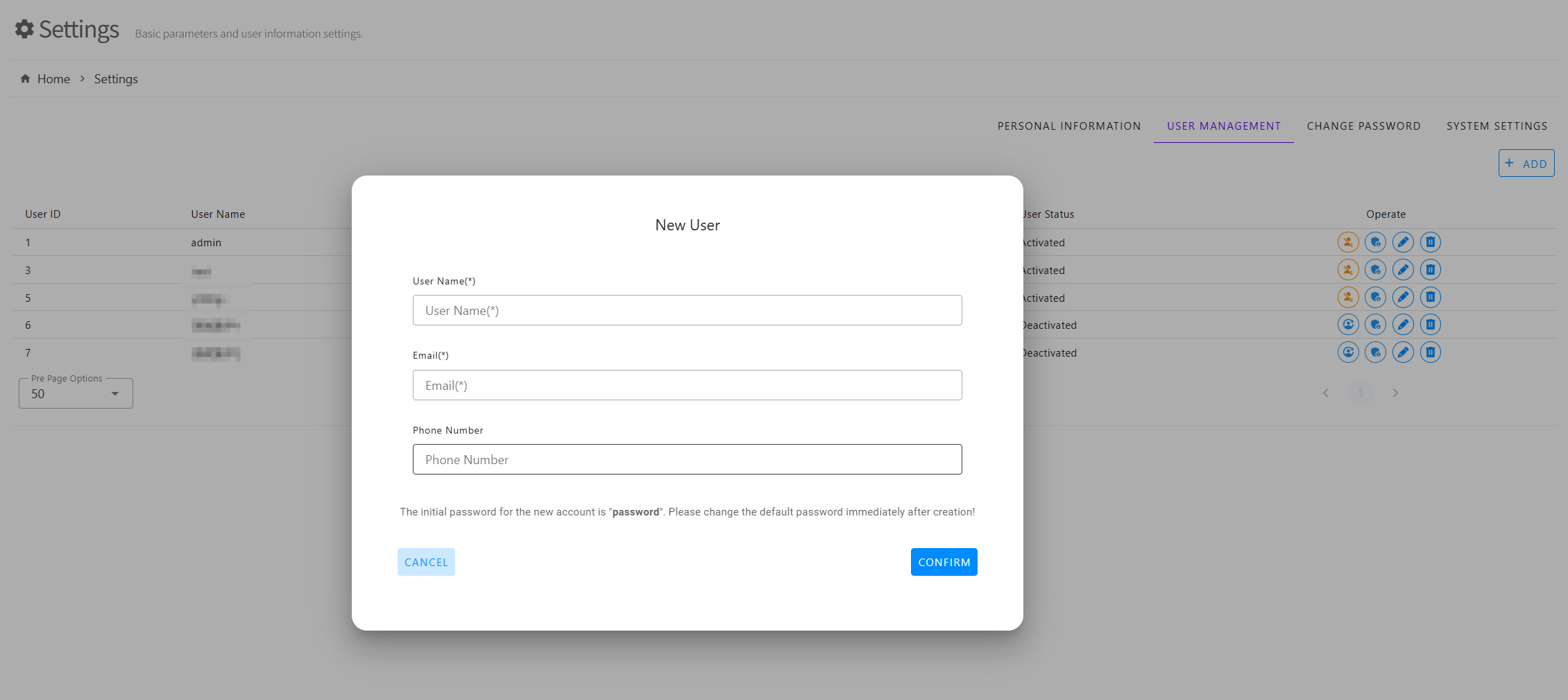
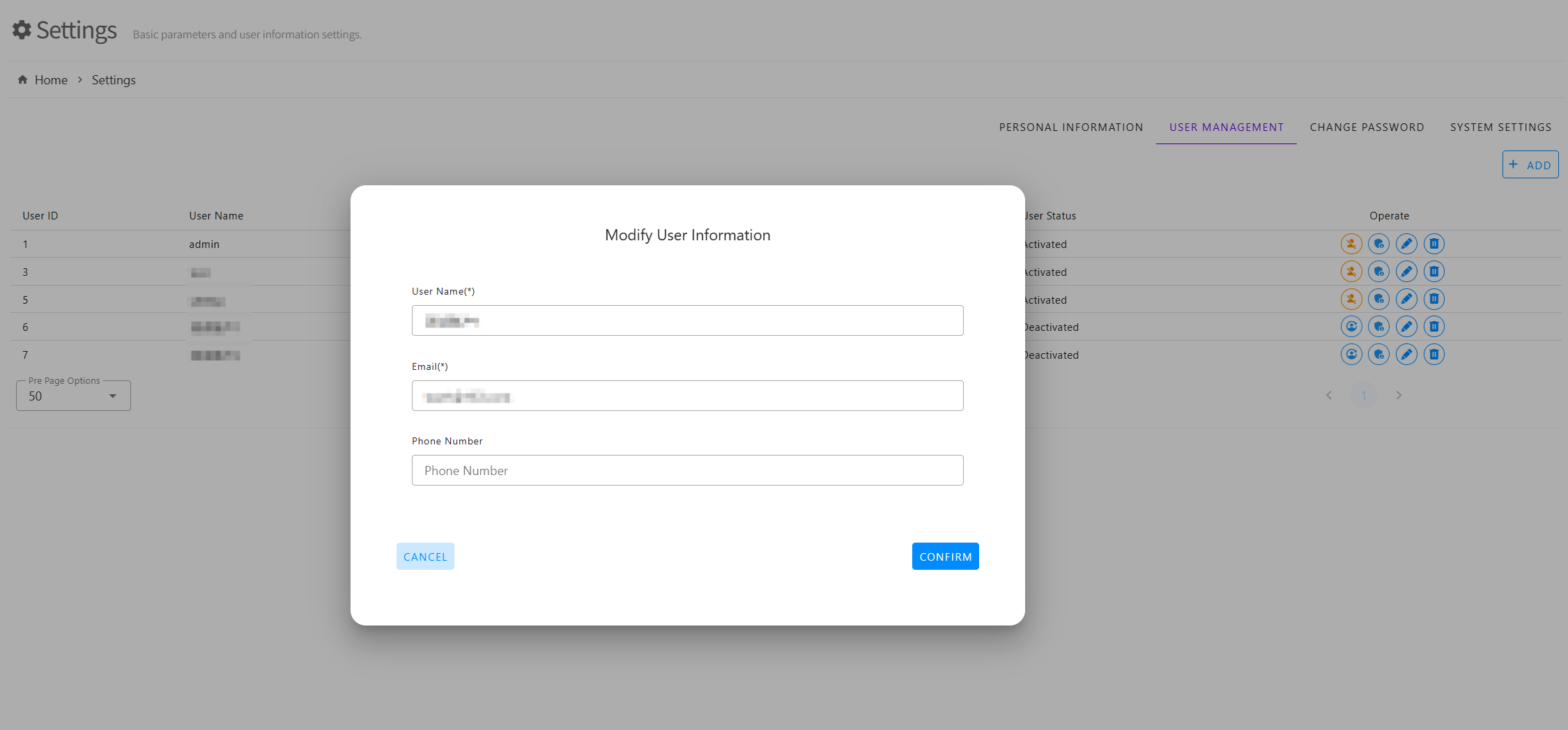
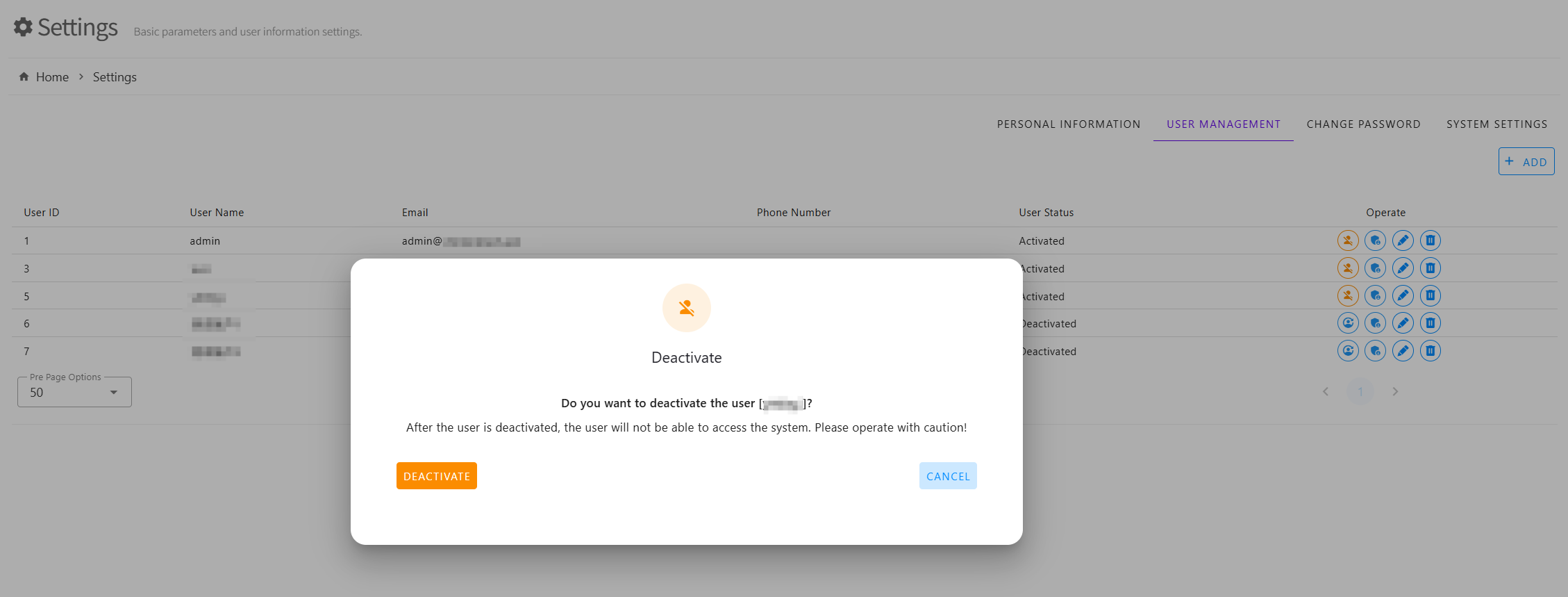
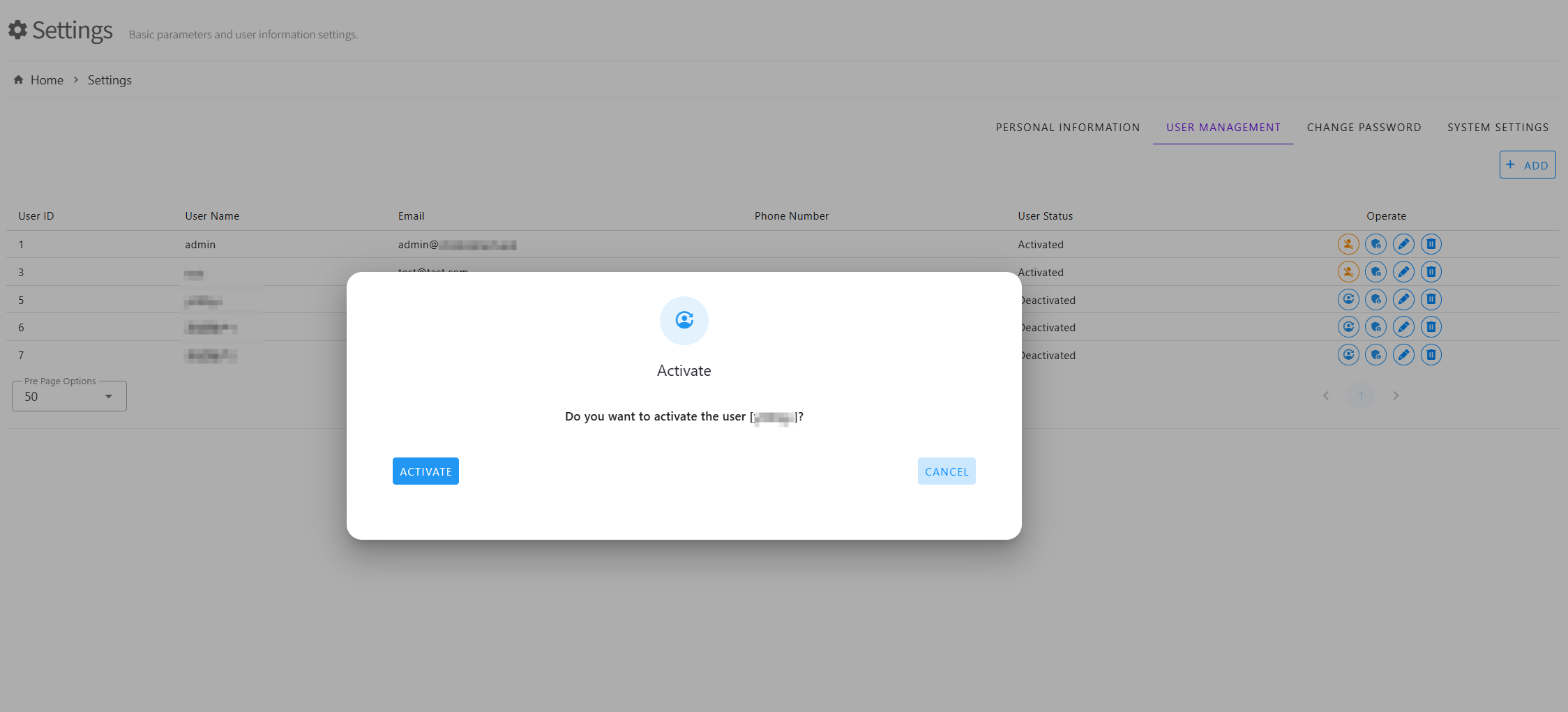
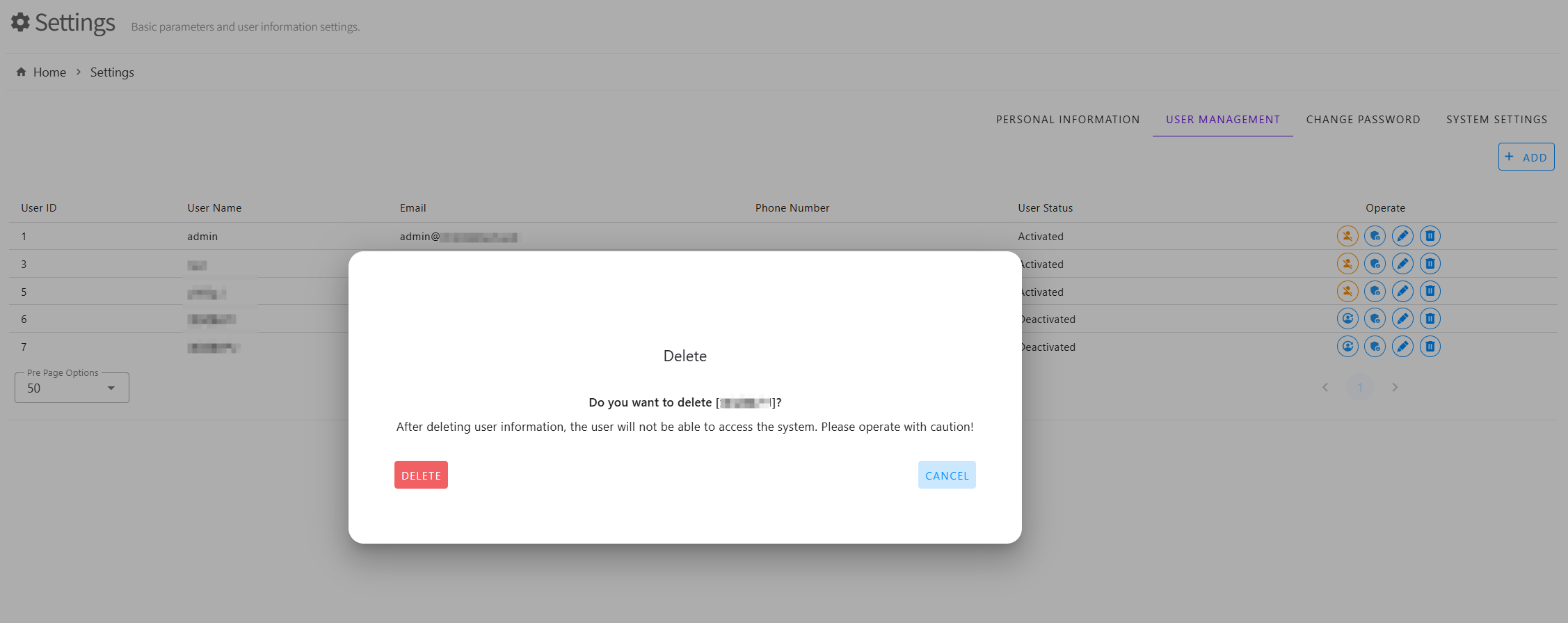
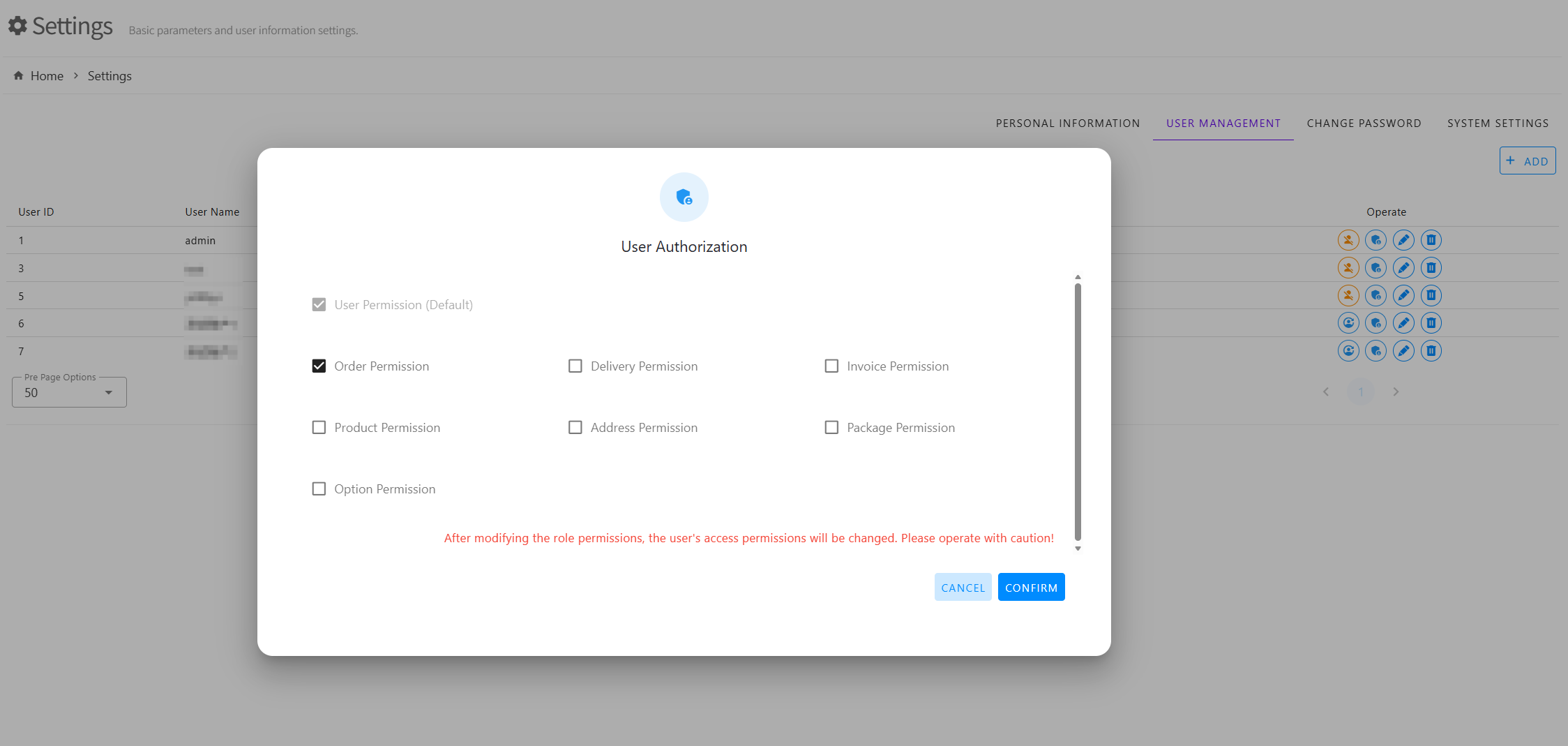
Administrator permissions are required to perform user management operations. You can add, modify, delete, activate/deactivate users, and set user operation permissions.
User List
Add New User
Modify User Information
Deactivate User
Activate User
Delete User
Set User Permissions
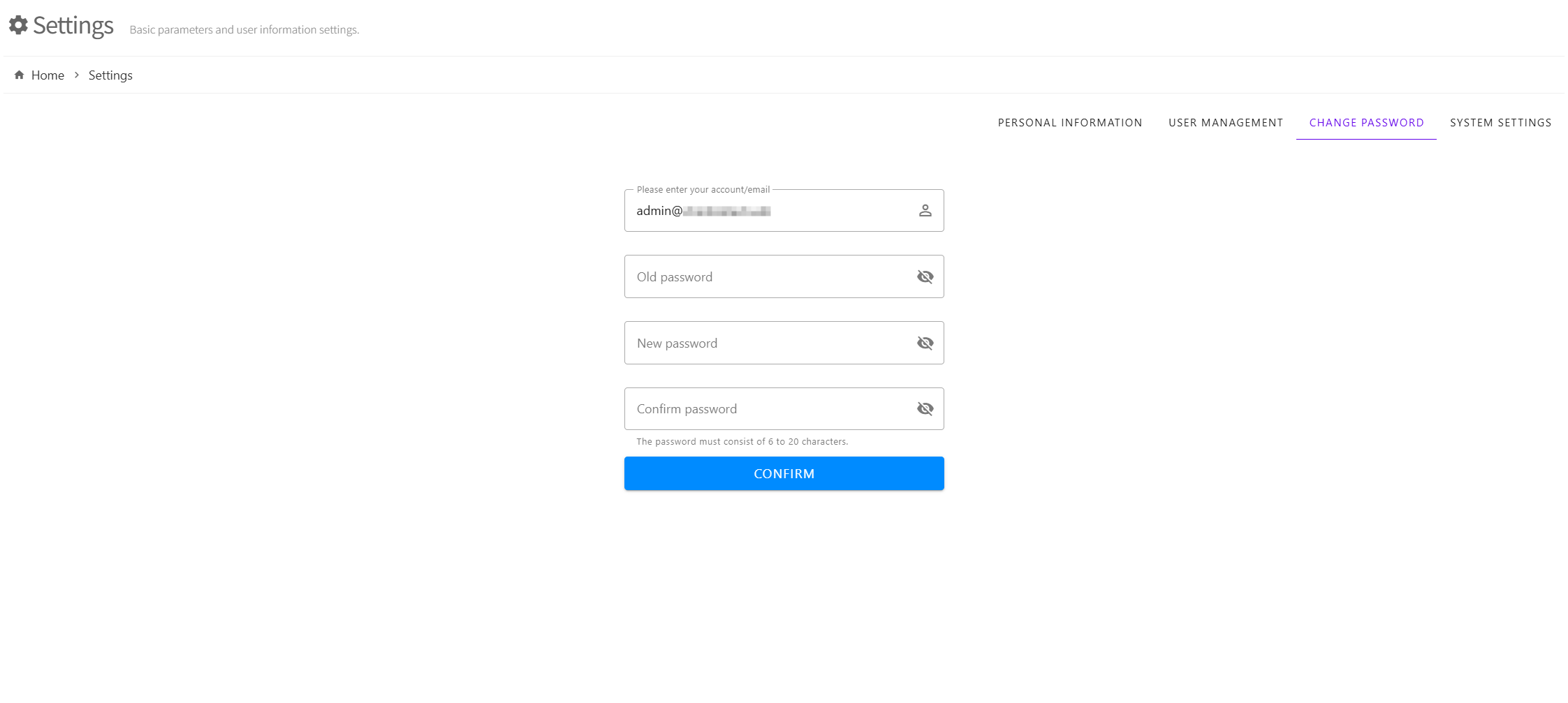
Change Password
Used to modify the login password of personal account.
Custom Requirements
Order operation execution process can be customized according to specific business.
Single process handling can add email notifications, etc.
Print PDF template content can be customized according to customer business content and style.
List, details, and other interface display content can all be customized.